Using administrative notes
Administrative notes let you leave non-clinical information on a client's chart for anyone on your team who works with that client — scheduling changes, a phone call worth remembering, a billing detail to check at the next visit. They work like a sticky note on a physical chart: one active note per client, pinned above the chart, edited in place as things change.
Any team member with access to the client's chart can read and update the note — including practice managers, billers, and schedulers, who can't write clinical documentation. That's the point: administrative notes are the writing surface for your front office, kept fully separate from the clinical record.
In this guide, we'll cover:
- Adding an administrative note
- Keeping a running list
- Editing and archiving a note
- Administrative notes vs. clinical notes
- FAQ
Adding an administrative note
- Open the client's chart and click Administrative Note in the tab bar (it shows a + when the chart has no note yet).

- Type your note — for example, "Guardian handles all scheduling; verify new insurance card at next visit."
- Click Save.
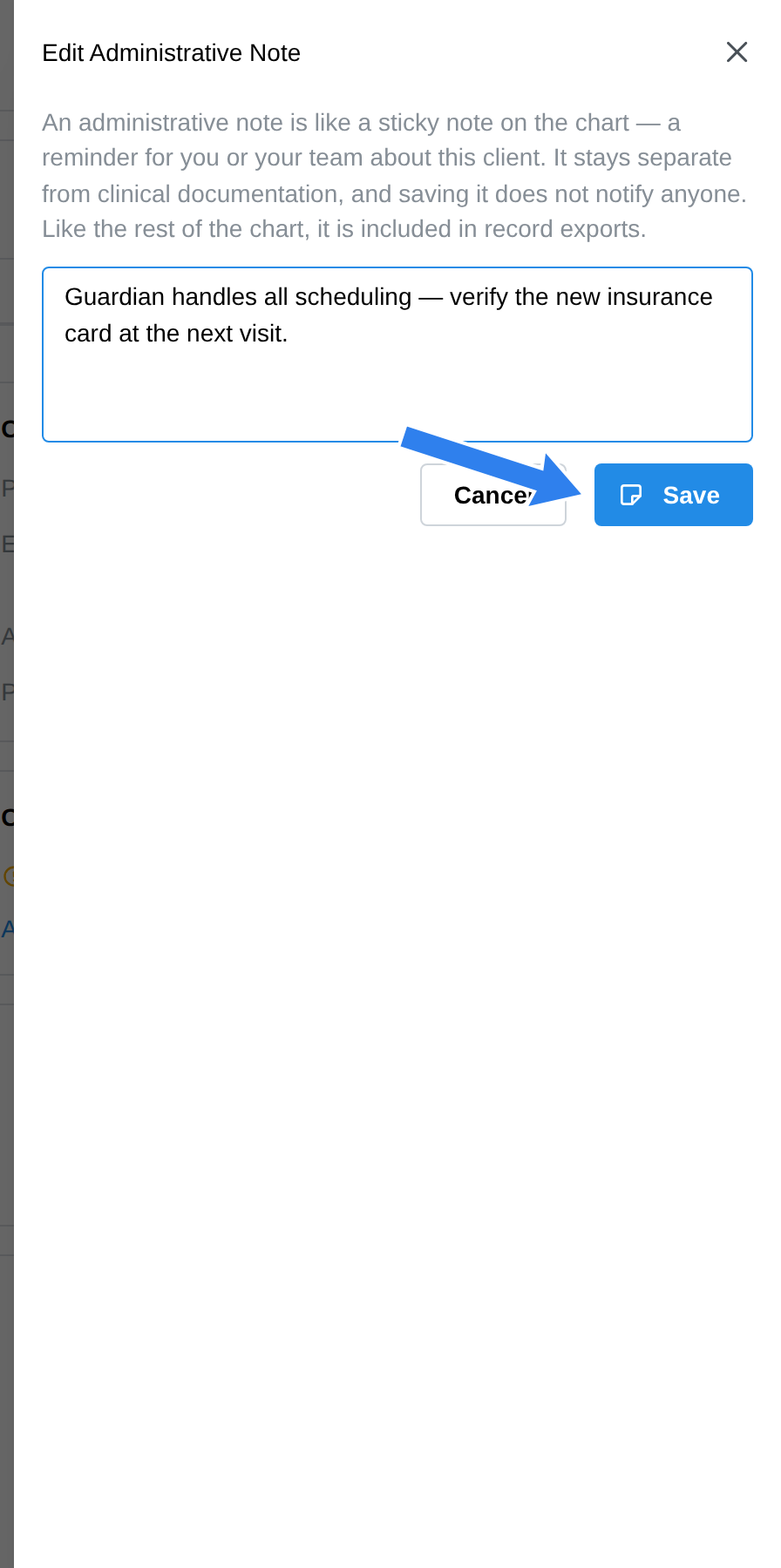
The note pins to the top of the chart as a yellow sticky that everyone on the team sees. The button in the tab bar now shows an amber dot, so you can tell at a glance — from any tab — that this chart has a note.
Administrative notes are also available on couple, family, and group charts, where they work exactly the same way.
Long notes collapse to their first two lines on the chart. Click the arrow on the sticky to expand or collapse it.
Keeping a running list
Each client keeps one active note at a time — clicking Administrative Note again opens the existing note for editing, with everything you've already written still there. For a log of dated events (schedule changes, phone calls, texts worth keeping), keep the note as a running list and add the newest line at the top:
9/2 - rescheduled Thursday session, mom notified by text
8/29 - left voicemail about outstanding forms
Line breaks are preserved, so the list stays readable as it grows.
Editing and archiving a note
- On the chart, click the arrow on the sticky to expand it.
- Click Edit to change the text, then Save.
- Click Archive when the note is no longer needed, and confirm.
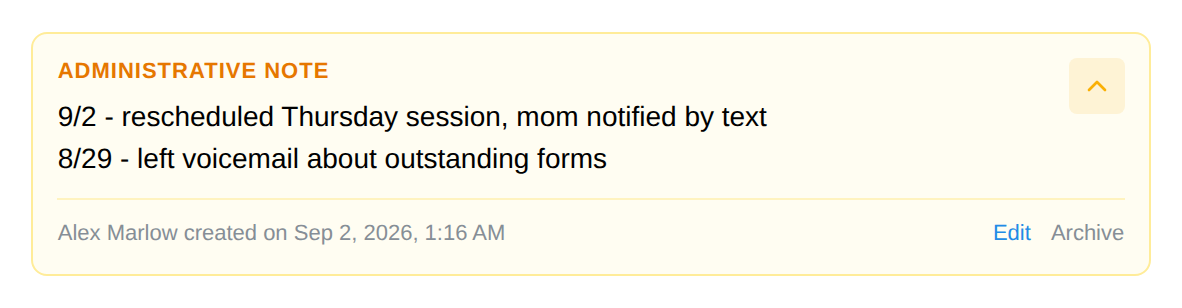
Archiving removes the sticky from the chart for everyone. There's no delete: the note is retained in the record rather than destroyed, so an archived note still appears in the client's record export. After archiving, the Administrative Note button returns to its + state and you can start a fresh note whenever you need one.
The note keeps its original date — editing doesn't re-date it. If the when matters, date each line inside the note as in the running-list example above.
Administrative notes vs. clinical notes
| Administrative note | Progress / chart notes | |
|---|---|---|
| Who can write it | Anyone with chart access, including managers, billers, and schedulers | Clinicians only |
| Where it lives | Pinned above the chart | The notes timeline |
| In the clinical notes list | Never | Yes |
| In record exports | Yes | Yes |
| Visible to the client in the portal | Never | Never |
| Signing | Not signed | Signed and locked |
Use an administrative note for operational information about working with the client. Session content, clinical observations, and anything that belongs in the treatment record go in a progress note, written by the treating clinician.
FAQ
Who sees an administrative note? Every team member who can open that client's chart. Clients never see administrative notes — they don't appear anywhere in the client portal.
Can I put clinical information in one? Don't. Administrative notes are excluded from the clinical notes list and aren't signed, so clinical content placed there sits outside your documentation workflow. If a manager or biller needs clinical content recorded, the treating clinician should write it.
Is there a history of past notes? The chart shows the current note. Because notes are archived rather than deleted, past notes remain part of the client's record and are included in a record export.
Why can't I add a second note? By design — one sticky per chart keeps the team looking at a single source of truth. Use the running-list pattern above when you need to track multiple items, or archive the old note and start fresh.