Referral sources
Every practice wants to know where its clients come from — the colleague who keeps sending people your way, the court program, the directory listing, the ad campaign that finally paid off. Practice Harbor tracks this with a practice-wide list of referral sources, a source picked on each client's profile, and a report that counts clients per source. Clients who book online are attributed automatically, down to the ad campaign that brought them.
In this guide, we'll cover:
- Setting up your referral sources
- Recording a client's referral source
- How online bookings attribute themselves
- Reading the Referrals report
- FAQ
Setting up your referral sources
Your practice keeps one shared list of sources. To manage it (account owners and practice managers):
- Go to Settings → Referral Sources (under Clients).
- Under Add a source, type a name — "Dr. Smith", "Superior Court", "Psychology Today" — pick a Type, and click Add.
- Click Save Changes.
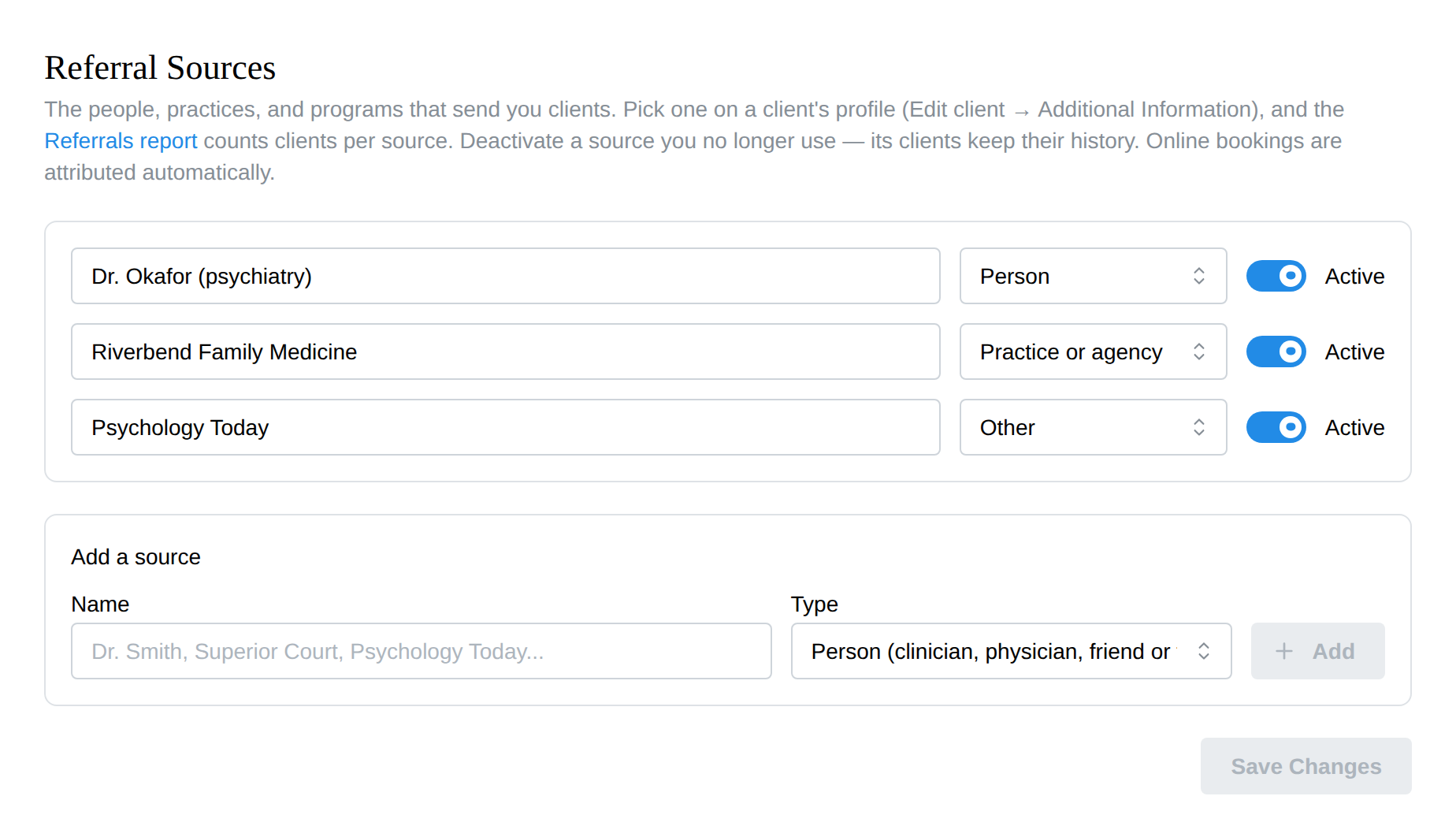
The Type (Person, Practice or agency, Program, Payer directory, Other) is a label for your own reporting — pick the closest fit and move on.
Two things you never have to worry about:
- Renaming is safe. Fix a typo or update a name any time — every client already attributed to that source keeps their history under the new name.
- Deactivate instead of deleting. Toggle a source you no longer use to inactive and it disappears from the picker on client profiles, but existing clients keep it and the report still counts them. Reactivate it any time.
Recording a client's referral source
- Open the client's chart and click Edit (or go to Clients, open the client, then the pencil).
- Expand Additional Information (Optional) at the bottom.
- Under Administrative, pick the Referral source — and set Date first seen while you're there (when care began, which can predate Practice Harbor for migrated clients).
- Click Save Changes.
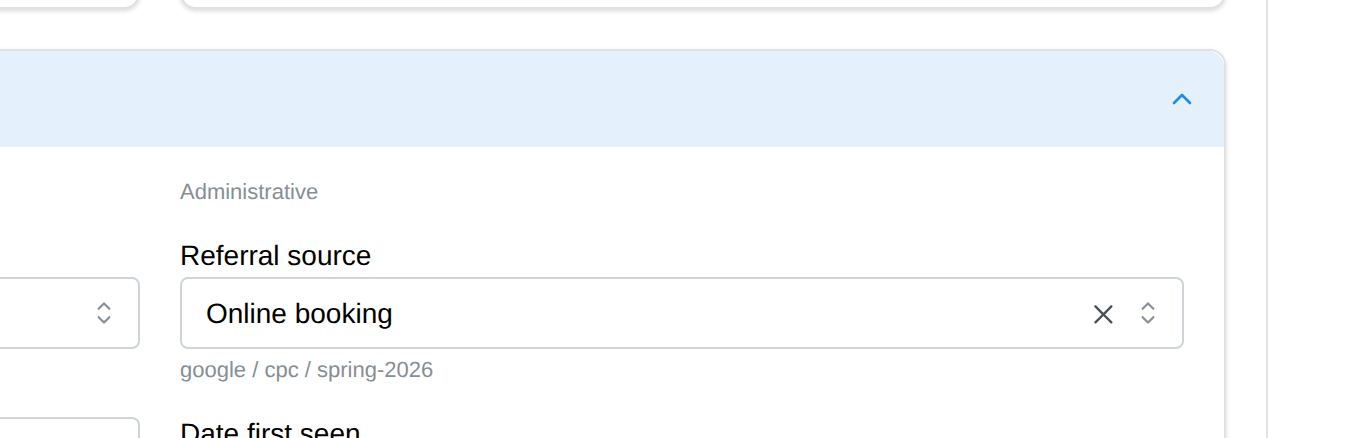
The source then shows on the client's chart in the Client info card, so anyone opening the chart can see it at a glance.
Adding a source on the spot: account owners and practice managers see a + Create new source... option at the bottom of the picker — name it, choose a type, and it's added to the practice list and selected for this client in one step. Clinicians without practice-settings access pick from the existing list; ask an admin to add a missing source.
Each client has one referral source. If someone was sent by two people, pick the one you'd thank first.
How online bookings attribute themselves
When a new client books through your website or booking link and you accept the request, the client is automatically attributed to a built-in Online booking source — no typing, ever. Better: if the visit carried campaign information (a Google Ads click, a link from a directory, your latest newsletter), that detail is captured and shown as fine print under the source on their profile — for example "google / cpc / spring-2026" or "from psychologytoday.com".
You'll also see the same "How they found you" summary on the booking request itself, before you accept it.
This is the part hand-typed referral fields always miss: the client who "found you online" stops being a mystery and becomes a specific campaign you can judge.
Reading the Referrals report
Go to Analytics → Referrals (practice-level roles: owner, practice manager, biller):
- Each row is a source, with Clients (everyone ever attributed to it), New clients in range (clients added to your practice inside the date window — pick it at the top right), and Revenue — everything those new clients have paid to date, insurance included, net of refunds.
- Under Online booking, indented rows break the number down campaign by campaign, so "12 online bookings" reads as "7 from the Google ads, 3 from Psychology Today, 2 direct".
- Export CSV downloads the same table, breakdown rows included.
- Manage sources (admins) jumps straight to the settings page.
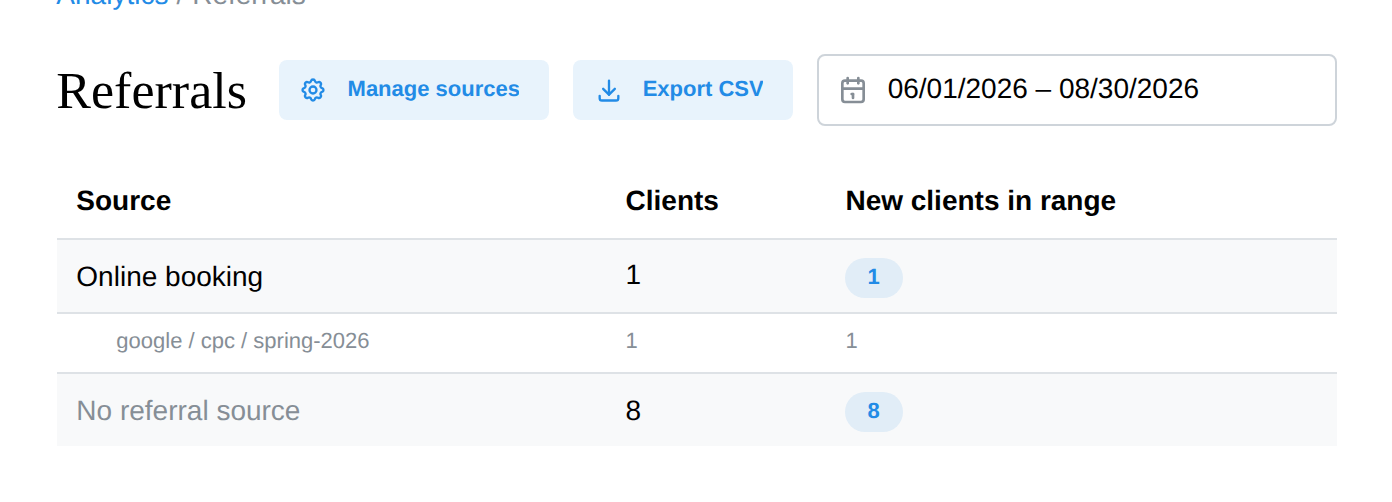
Clients with no source appear as one No referral source row — a handy to-do list for chart cleanup.
FAQ
Who can edit the source list? Account owners and practice managers. Clinicians can pick a source for their own clients but can't change the practice list.
Can a client have two referral sources? No — one per client. The campaign fine print under Online booking covers the "which ad, which site" detail without needing a second source.
What happens to clients if I deactivate their source? Nothing — they keep it, the report keeps counting them, and their profile still shows it (marked inactive in the picker). Deactivating only hides the source from future picks.
Why does an old client show no "new in range" date? "New" is based on the date the client was added to Practice Harbor. Clients imported from a previous EHR count from their import date.
How is Revenue calculated? All payments collected to date — card, cash, check, and insurance, net of refunds — from the clients added in the selected range. So the column answers "what have this period's referrals brought in so far", the same way SimplePractice's Referral income report works. Couple and family payments count toward the unit's identified client.