Roles & permissions
Every team member holds one or more roles, and the roles determine what they can see and do. Roles are additive: a person can be, for example, a clinician and the practice biller at the same time — they get the combined permissions of every role they hold.
There are three kinds of roles:
- Clinician access levels — for people who treat clients (pick exactly one level)
- Supervisor — an overlay for reviewing and co-signing supervisee notes
- Administrative roles — for non-clinical staff (any combination)
In this guide, we'll cover:
See a role's permissions while choosing it
When you invite a team member (Settings → Team → Invite Member) or edit someone's role, a panel beside the role checkboxes lists what each selected role can do and over which clients — Entire practice or Their clients — grouped as Client care, Billing, Operations, and Supervision. It updates as you change the selection, and any additional permissions you grant appear underneath. The tables below summarize the same information.
Clinician access levels
When someone has the Clinician role, one of four access levels applies:
| Permission | Entire practice | Full client list | Billing | Basic |
|---|---|---|---|---|
| See all clients in the practice | Yes | Yes | Own only | Own only |
| Inquiries page (booking requests, contact-form messages, new clients) | All | All | Own new clients only | Own new clients only |
| Schedule & document for their own clients | Yes | Yes | Yes | Yes |
| Document for other clinicians' clients | Yes | No | No | No |
| Edit, sign, or unlock another clinician's note | Yes | No | No | No |
| Read other clinicians' notes | Yes | Yes | No | No |
| Billing dashboard (practice-wide totals) | Yes | Own clients | Own clients | No |
| Billing (invoices, payments, claims) | Yes | Yes | Own clients | No |
| Invite / manage team members | Yes | No | No | No |
| Modify practice settings | Yes | No | No | No |
- Clinician with entire practice access — full access to all clients and features, including documentation, billing, and settings. The practice owner has this level.
- Clinician with full client list access (called Standard Clinician before September 2026) — sees every client, schedule, and chart in the practice and can bill any client from their chart. Reads every note but edits, signs, and unlocks only the notes they wrote; the Billing dashboard shows their own caseload. Can't change practice settings or invite team members. A standard clinician who runs the practice's billing should also hold the Practice Biller role.
- Clinician with billing access — their own caseload only, with billing capabilities.
- Clinician with basic access — their own caseload with basic privileges and no billing. This is the usual level for pre-licensed clinicians and trainees.
For Billing Access and Basic levels, the client list and charts are limited to their own caseload, and progress notes and intake responses always stay with the clinician who wrote or received them. Clinical records attached to a client — uploaded files, assessment scores, session records — are visible practice-wide, so care isn't interrupted when a client is seen by more than one clinician. Writing is unchanged: each clinician documents for their own clients only.
Supervisor
The Supervisor role lets a team member review and co-sign notes written by their supervisees. It can be combined with any clinician level, or held on its own by a supervisor who doesn't carry a caseload in the practice. Supervisors get the Supervision dashboard for their review queue — see Supervision for the full workflow.
Administrative roles
| Permission | Practice manager | Practice biller | Practice scheduler |
|---|---|---|---|
| See every client in the practice (profile, insurance, documents, forms) | Yes | Yes | Yes |
| Inquiries page - accept/decline booking requests, handle contact-form messages | Yes | No | Yes |
| View every clinician's calendar | Yes | Yes | Yes |
| Schedule new appointments for any clinician | Yes | No | Yes |
| Edit existing appointments — time, status, services | Yes | Yes | Yes |
| Add clients and send intake forms | Yes | No | Yes |
| Read clinical notes | Yes | Yes | Yes |
| Write or sign clinical notes | No | No | No |
| Billing administration (invoices, payments, claims) | Yes | Yes | No |
| Invite / manage team members | Yes | No | No |
| Manage practice operations & settings | Yes | No | No |
A practice manager sees every client and every calendar in the practice — there is nothing to "add" for that. What administrative roles can't do is clinical documentation: an office manager who also sees clients would hold both an administrative role and a clinician role.
Additional permissions
On top of the roles, a team member can be given individual additional permissions. Each one is a checkbox on the team member's roles page (when inviting, and under Edit Role), and only appears when it makes a difference for that person's roles. A permission a role already includes shows as checked and can't be turned off.
| Permission | Who can be given it | Already included with |
|---|---|---|
| View financial dashboards and reports — opens the Analytics area (income, balances, and the report pages). Entire Practice, Practice biller, and granted Practice managers see the whole practice; a Clinician with billing access sees only their own clients, and the whole-practice reports (Payouts, Payment reports, Income allocation) are not offered to them | Practice manager | Entire Practice, Billing Access, Practice biller |
| Set own service rates — lets the clinician edit their own rate overrides on My Rates | Basic and Billing Access clinicians | Entire Practice, Clinician with full client list access, Practice manager, Practice biller |
Two rules:
- A practice manager does not see Analytics by default — the practice owner turns that permission on. The Insurance area and everything else a manager does is unaffected.
- Only the practice owner (Entire Practice Access) can grant View financial dashboards and reports. Owners and practice managers can both grant Set own service rates.
Additional permissions are enforced by the platform, like roles: a permission the person doesn't hold can't be reached by URL or by editing their own profile.
Changing a team member's roles
- Go to Settings → Team
- Click the ⋮ menu next to the team member and choose Edit Role
- Adjust their roles, access level, additional permissions, or supervision setup and save
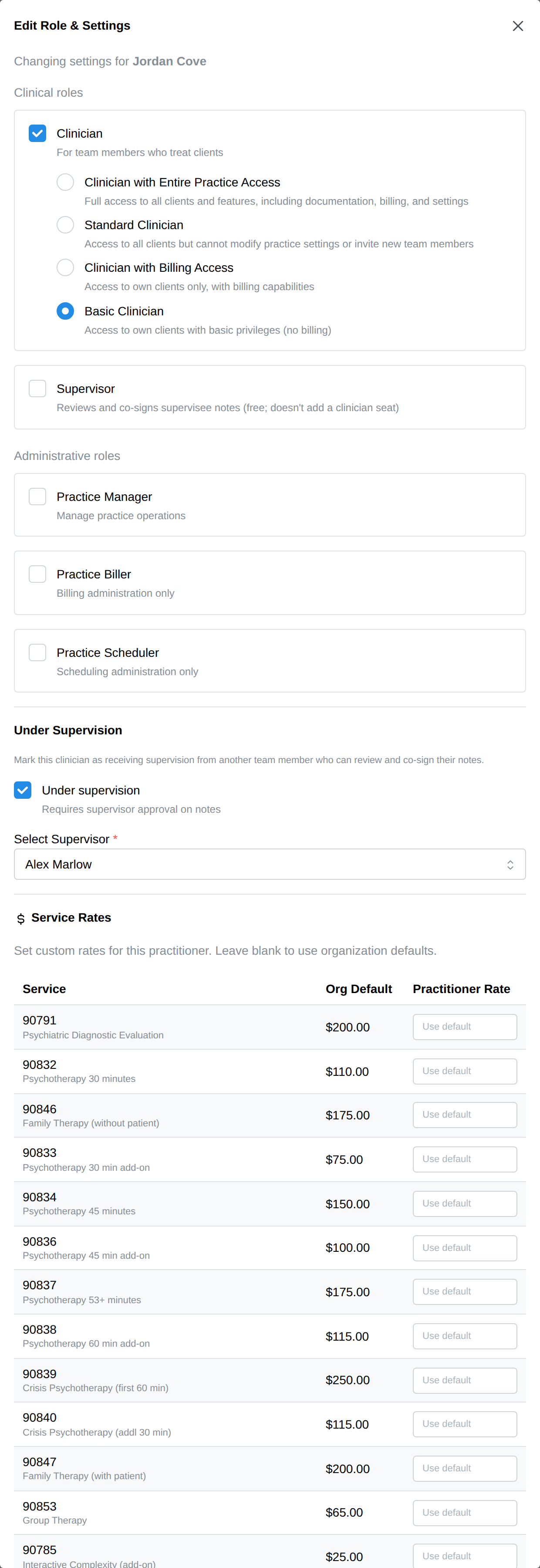
Notes on editing:
- Role changes take effect the next time the member loads the app.
- Removing the Supervisor role from someone who still has supervisees asks for explicit confirmation first.
- You can change a member's supervisor (or take them off supervision) from the same dialog.
These levels are enforced server-side by the platform's access policies, not just hidden in the interface — a role can't reach data its level doesn't grant, regardless of URL.