Notes, signing & the sign queue
A note isn't done until it's signed — the signature is what turns a draft into part of the legal record. This page covers where notes live, how signing and unlocking work, and how to keep the queue at zero.
In this guide, we'll cover:
- Where notes live
- Working the queue
- Quick chart notes
- Editing a note
- Signing
- Correcting a signed note
- Under supervision
- Keeping documentation current
- Troubleshooting & FAQ
Where notes live
- On the client's chart — the Dashboard tab's Clinical Notes section is the per-client view, with the note bar (Type / Dictate / Live Session) to start a new one.
- Notes to Sign (left sidebar) — your cross-client queue at a glance: your own notes needing attention, unsigned treatment plans, and treatment plans due for review (the sidebar count adds notes and plans due for review). If you supervise others, your co-sign queue lives on the Supervision dashboard, not here.
Working the queue
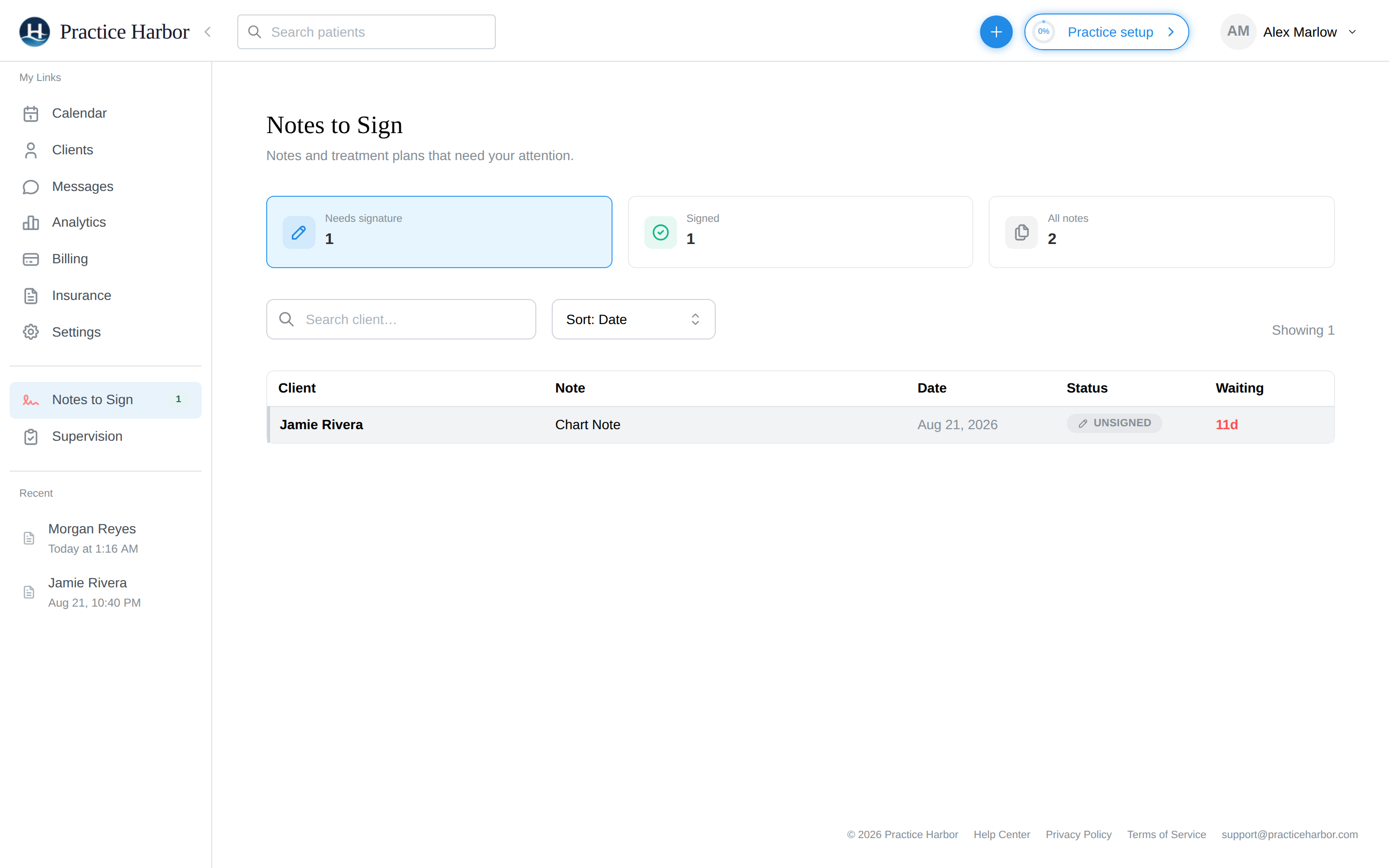
The Notes to Sign page ("Notes and treatment plans that need your attention") is built for the end-of-day sweep:
- The default filter, Needs signature, is your to-do list; under supervision you also get Submitted (with your supervisor) and Returned (sent back for edits).
- The Waiting column counts days since the session — anything older than two days turns red (or orange while it's your supervisor's move), so the oldest debts stand out.
- Click a row to open the note, sign it, and come back — "You're all caught up" is the goal state.
Above the table, a Treatment plans to sign section appears when any client has an unsigned treatment plan — each row opens the plan so you can sign it there. A Plans due for review section appears when any treatment plan is approaching its review date, badged Overdue or Due soon.
Quick chart notes
Not every entry is a session note. Type on the client's Dashboard opens a free-text Chart Note — right for a phone call, a records request, collateral contact — with its own date and time (defaults to now). Click Add Note and it files onto the chart as a draft like any other note.
Typed notes aren't limited to free text: the Format picker above the text box defaults to Chart Note (free-form), and choosing one of your templates instead opens the full note editor with that template's sections ready to fill in — the typed equivalent of a recorded or dictated note's structure.
Editing a note
Open any unsigned note to work on it:
- Edit sections directly; changes are held locally until you click Save — there's no autosave, and closing the browser with unsaved edits warns you first.
- The wand icon on each section is Magic Edit — AI refinement of just that section.
- Regenerate Note... (⋮ menu) re-drafts the whole note from the session transcript with a different template — available while unsigned, for notes that have a transcript.
- The ⋮ menu also offers Print, Download PDF, and — for unsigned notes only — Delete Note (which removes the note and its transcripts, permanently).
Signing
Click Sign Note when it's ready. Signing:
- Stamps the note with your name, credential, license, and timestamp — shown in the signature block and on the PDF.
- Locks the clinical content — sections become read-only, Magic Edit disables, and the note badge flips to Signed. The note keeps its original session date; signing later never moves it.
Correcting a signed note
Signed doesn't mean untouchable — it means accountable. Unlock Note (on any signed note) reverts it to draft for editing, with guardrails:
- Pick a reason — Correction / Error Fix, Add Missing Information, Change Note Template, Supervisor Requested Changes, Late Entry / Addendum, or Other.
- The unlock is recorded in the audit trail, and the note itself displays the provenance — "Unlocked by [name] on [date] — [reason]."
- Edit, then sign again.
There's no separate addendum document type — late additions are made by unlocking with the "Late Entry / Addendum" reason, so the correction history stays attached to the note itself.
Under supervision
For supervised clinicians the flow adds one round-trip:
- Your sign button reads Submit for Review — the note shows Awaiting Supervisor Review and moves to your Submitted filter.
- Your supervisor either Co-Signs (note finalizes with both signatures — Provider and Supervisor cards in the signature block) or clicks Request Edits with a comment.
- Returned notes appear under your Returned filter with the supervisor's comment shown on the note — revise and resubmit.
See Supervision for the supervisor's side.
Keeping documentation current
- Record or dictate close to the session while it's fresh (see Recording a Session).
- Sweep Notes to Sign to zero on a regular rhythm — the Waiting column keeps you honest.
- Check the Notes Report monthly: it matches sessions to notes and flags the one thing the queue can't — a session with no note at all ("Missing note").
Related
Troubleshooting & FAQ
I typed a note on the chart and it isn't attached to the session. A note typed from the Type button on the chart is a standalone chart note — it's for things not tied to an appointment (phone calls, records requests, collateral contact), and it can't be moved onto one. For a session note, start from the appointment itself: on the chart timeline or the calendar, open the appointment and use its note box or Type action there. If you've already typed the content on the chart, copy it (the Copy Text button), create the note from the appointment, paste, and delete the chart note.