Sharing downloadable files
Some documents aren't forms to fill out — they're PDFs the client just needs to have: a practice-policies handout, a psychoeducation worksheet, a form they'll print and take to a notary. Downloadable files are your practice's library of these PDFs, shared with clients through the portal as simple downloads — no signature, no completion status, no reminders chasing them.
In this guide, we'll cover:
Building your file library
- Go to Settings → Intake Documents and open the Downloadable Files tab.
- Upload your PDF. (PDF is the only accepted format — it renders and prints identically everywhere, which is the point of a handout.)
- Mark a file as Default if it should be pre-selected whenever you share documents with a client — right for something every new client gets, like your practice policies.
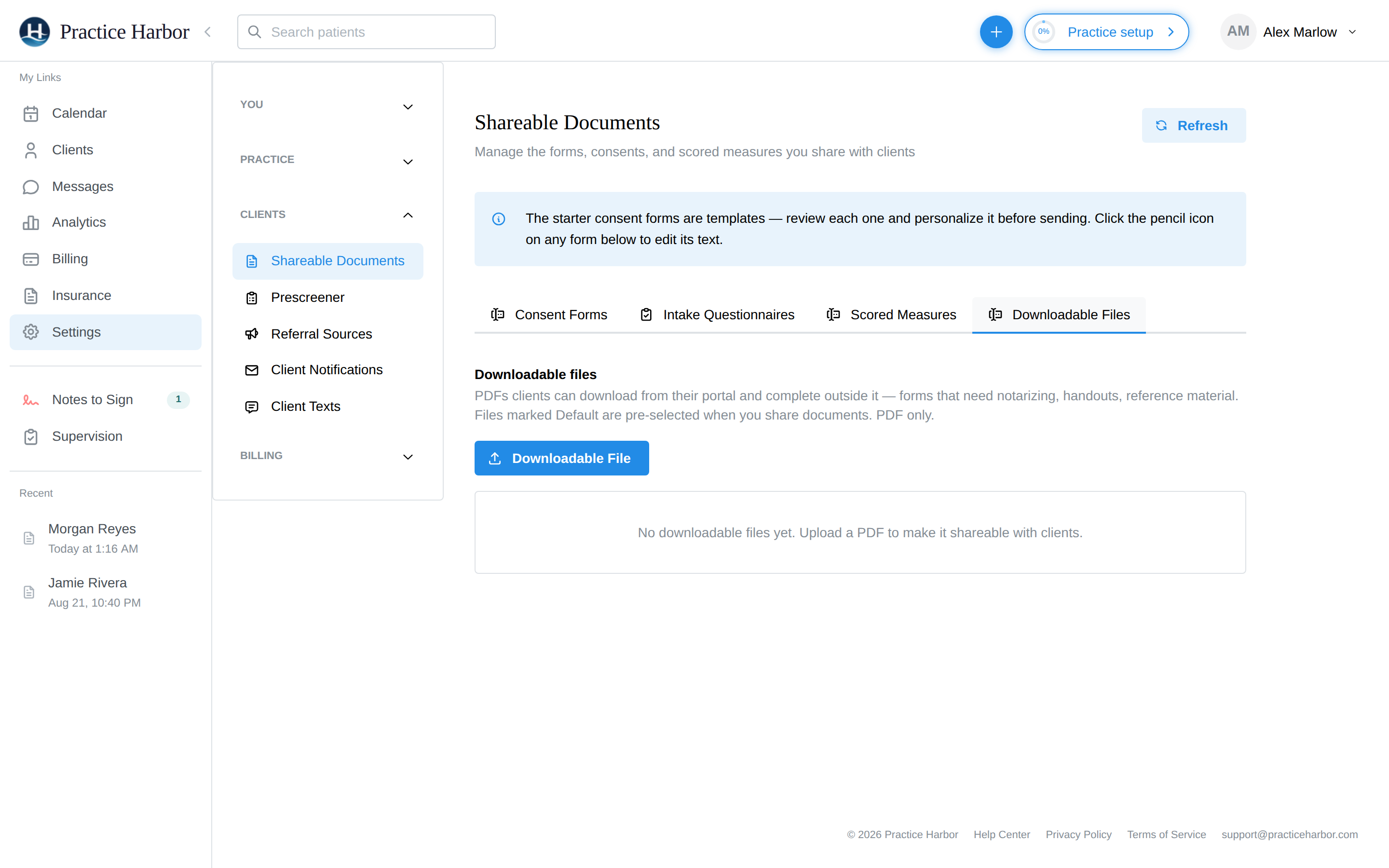
Deleting a library file removes it from the library only — clients you've already shared it with keep their copy.
Sharing files with a client
Downloadable files ride the same Share Documents flow as your intake forms:
- From the client list, click Share Documents (or share from the client's chart).
- Alongside consent forms and questionnaires you'll see a Downloadable files section — your library, with Default files pre-selected. Pick what this client should get.
- Send. The files appear in the client's portal immediately.
The Downloadable files section only appears once your library has at least one file in it.
What the client sees
In the portal, shared files appear under From your practice on the Documents page. Each file is a plain download — nothing to complete, nothing added to their to-do checklist, and no reminder emails about it.
When the client downloads a file, its row on your side shows a Downloaded badge with the date — so for a "please print and notarize this" workflow you can see whether they've actually retrieved it.
FAQ
How is this different from uploading a file to the client's chart? A chart upload is your record about the client. A downloadable file is for the client — it's built to be shared to the portal, tracked with a Downloaded badge, and reused across your whole caseload from one library copy.
Why doesn't it show up in the client's checklist? By design. Checklists and reminders are for things the client must complete. A download-only PDF has no completion state — putting it in the checklist would nag clients about paperwork that has nothing to finish.
Can I share a Word document or an image? The library is PDF-only. Export your document to PDF first — every word processor can — so the client sees exactly the layout you intended.
Can guardians download files for a minor? Yes — a parent or guardian managing a minor's portal sees the same From your practice section on the child's behalf.