Client notifications & reminders
Reminders cut no-shows more than any other setting in the app. This guide covers the automated emails your clients receive, how to turn on email and text reminders, and the notifications you get as a clinician.
Setting up appointment reminders
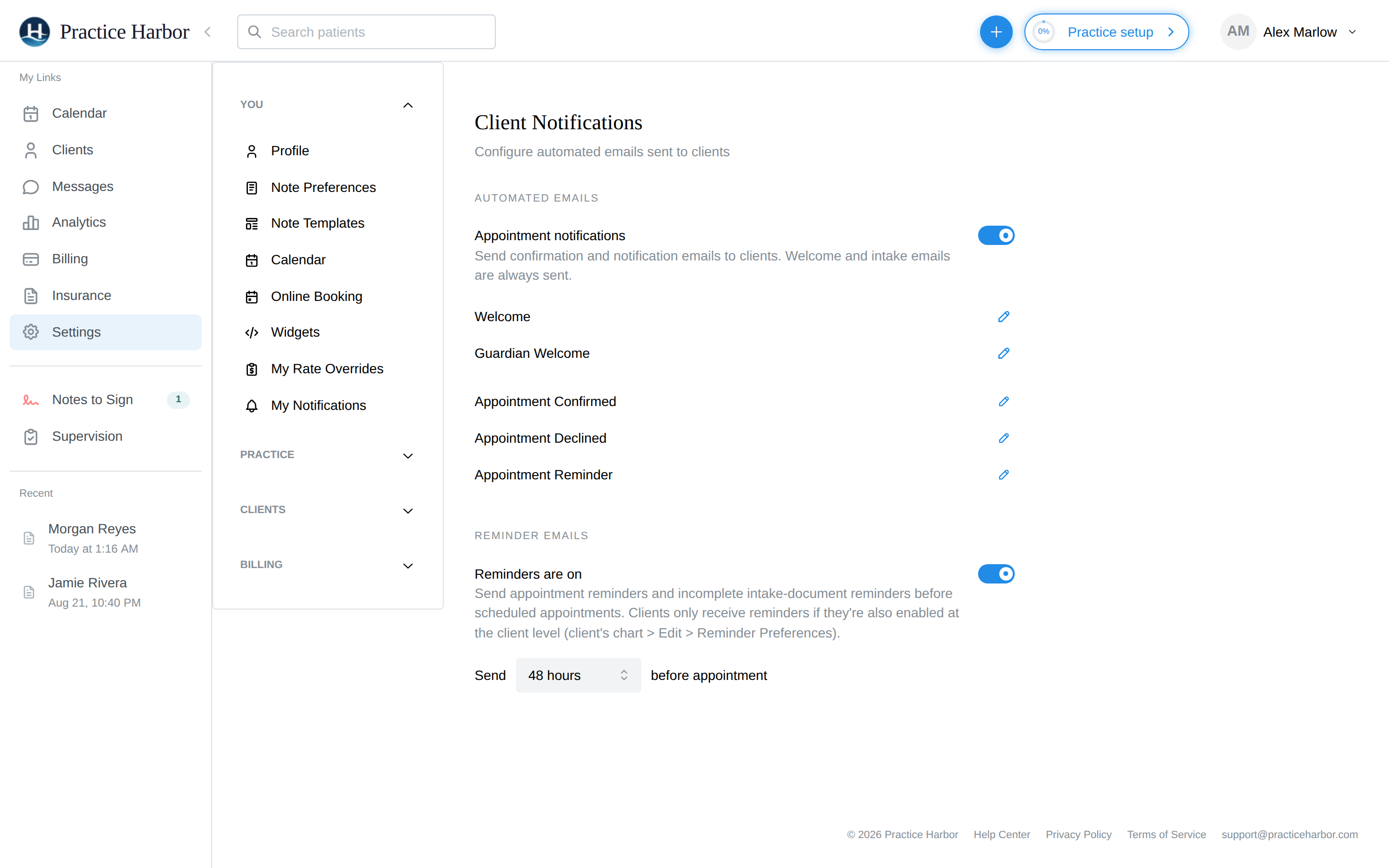
- Go to Settings → Client Notifications (under Clients — practice owners and managers only).
- In Reminder Emails, make sure Reminders are on — it is by default.
- Choose the timing: send 24, 48, or 72 hours before the appointment (48 is the default). Changes save automatically.
That's the practice-wide half. Each client also has their own settings, on by default for email — check them if someone reports missing reminders:
- Open the client's chart and click Edit.
- Under Contact details, make sure the email address is marked Email OK (not Do not use).
- Under Reminder and notification options, confirm Upcoming appointments is on and the Email dropdown shows the address you expect. If the client has several addresses, pick the one that should receive reminders; choose No email to stop email reminders for this client.
Reminder emails include a calendar invite (.ics) the client can add to their own calendar, and for telehealth sessions, the link to join.
Reminders go only for appointments still on the books — cancel or delete a session and no reminder is sent. For couples, family, and group sessions, every member gets their own reminder. For clients without their own email (a child, say), the reminder goes to the guardian's email instead, and family contacts who've been given appointment access in the portal receive reminders too.
Customizing the emails clients receive
The Automated Emails section of the same page controls the rest of client email:
- Appointment notifications — confirmation and update emails when you accept or decline a client's online booking request. Welcome and intake emails are always sent regardless — they're functional, not promotional.
- Click the pencil next to any template — Welcome, Appointment Confirmed, Appointment Declined, Appointment Reminder, Guardian Welcome — to rewrite it in your own voice. Insert placeholders (client name, appointment date/time, practice details, portal link) from the macro menu, and they're filled in per email.
When you schedule an appointment directly, the client does not get a confirmation email — only appointments the client requested (and you approved) trigger one. The reminder email before the session is what tells directly-scheduled clients about it, so pick a reminder window that gives them enough notice.
Reminding clients to finish paperwork
To chase unfinished intake forms automatically, flip the per-client switch: client's chart → Edit → Reminder and notification options → Incomplete documents. It's off by default; when on, the client is emailed before each appointment about any pending forms, consents, or measures. If the client has several email addresses, pick which one these go to — it can differ from the appointment-reminder address. See Intake forms.
Setting up text (SMS) reminders
- Go to Settings → Client Texts.
- Turn on Text appointment reminders and pick the timing — 4, 24, or 48 hours before (default 24).
- Get each client's consent: client's chart → Edit → Contact details → set the phone number's permission to Text OK, then under Reminder and notification options pick that number in the Phone (by text) dropdown. Texting is strictly opt-in per number (Text OK records their consent to receive reminder texts at that number; message and data rates may apply, and every text ends with "Reply STOP to opt out").
What the text says
Reminders lead with your practice's name, so clients recognise who the message is from:
Healing Hearts Counseling: Reminder of your appointment on Tuesday, June 30 at 2:00 PM CDT. Reply STOP to opt out.
The wording is the same for every practice — only your practice name, the date and the time change. The time is shown in the client's own time zone if they have set one, otherwise your practice's.
Two things worth knowing. The texting number cannot receive replies — if a client texts back, nobody sees it. "STOP" is the exception and always works to unsubscribe. And reminders never contain notes, diagnoses, the service type, or the clinician's name.
Texts aren't encrypted, so reminders carry only your practice name, the date and the time.
Clients agree to texts themselves. The consent they see says texts aren't encrypted, that reminders show your practice's name, and that texts are optional and never a condition of care, so there is nothing extra for you to collect. A client who would rather not receive texts can leave the box unchecked or turn reminders off at any time; email reminders are unaffected.
Your own notifications
What you get emailed about lives at Settings → My Notifications (under You):
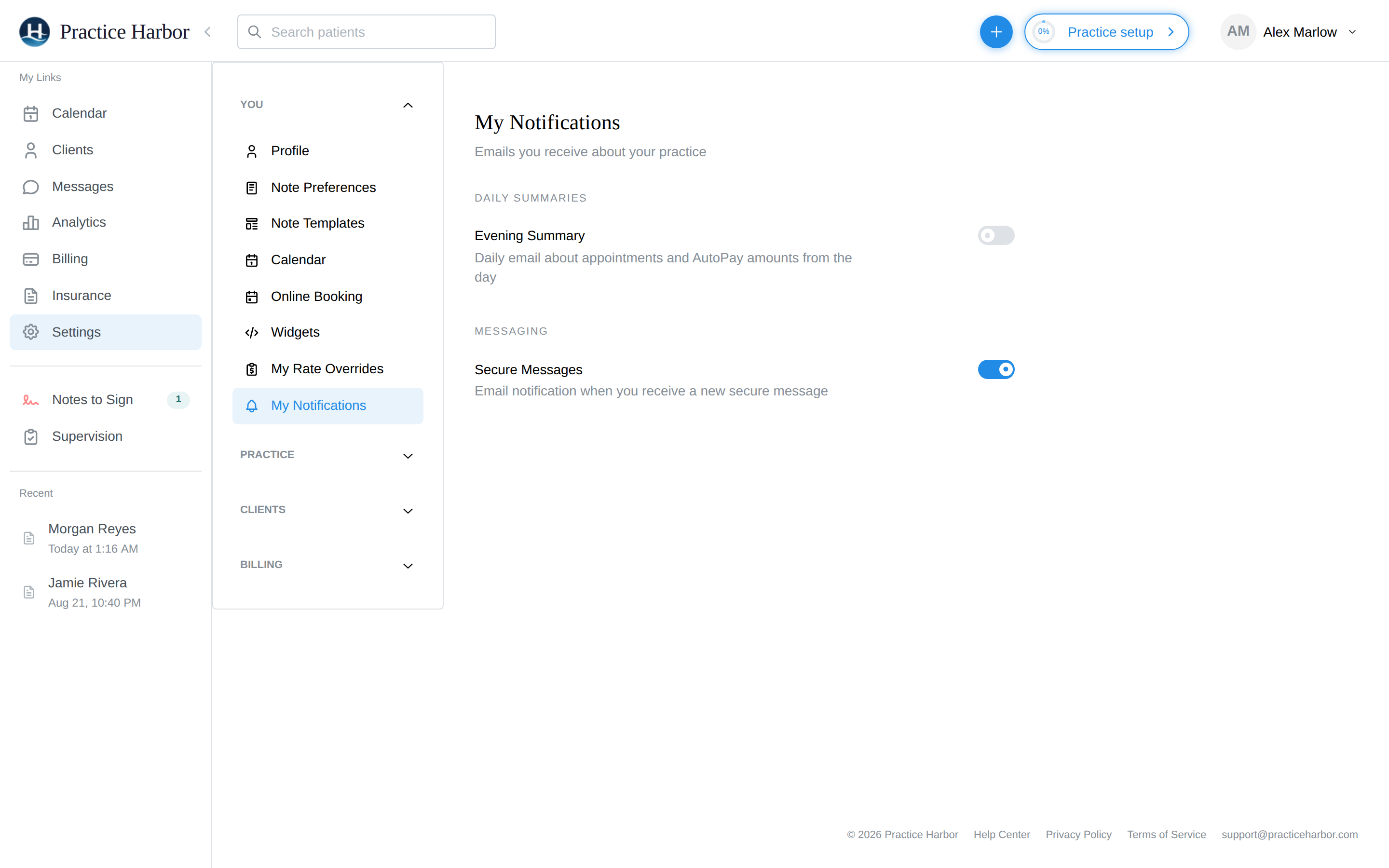
- Evening Summary — a daily digest of the day's appointments and AutoPay amounts (off by default).
- Secure Messages — an email whenever a client sends you a secure message (on by default).
Some practice events email you automatically, no setting needed: a new client request from your booking page, an appointment request from an existing client, a client cancelling a booked appointment from the portal, and a client completing the last of their intake forms.
Telling a client you cancelled
Turn on Alerts under Settings → Calendar (it is off until you do). Then, when you change an appointment to Clinician Cancelled and save, a Send cancellation message? dialog appears. It lists the client, plus any contacts who receive their appointment reminders, with Email and Text pre-ticked from each person's own reminder settings. Anyone with no reminders turned on is listed underneath so you know they will not hear from the app. Click Send cancellation message or Don't send.
- The email uses the Appointment Canceled template under Settings → Client Notifications, which you can edit. The text reads: "The appointment on [date] at [time] has been canceled by [clinician]. No appointment fees will be charged." No client name is included in the text.
- Each message is recorded on the client's activity, so the same cancellation is never sent twice.
- The prompt is practice-wide: turning Alerts off again under Settings → Calendar stops it for everyone.
A plain Cancelled (the client cancelled with notice), Late Cancelled, No Show and a client's own cancellation from the portal never prompt. Cancelling a group session asks which of the two it is.
Troubleshooting
A client says they get no reminders. Check in order: Reminders are on at Settings → Client Notifications; the client's own Upcoming appointments setting and its Email dropdown (chart → Edit → Reminder and notification options); the address is marked Email OK under Contact details; and the appointment is still booked — cancelled sessions don't remind.
Can I skip the reminder for one specific appointment? No — reminders switch at the practice or client level only. If a session shouldn't be reminded about, it usually shouldn't be on the calendar as booked.
Why did a client get no confirmation when I booked them? By design — see the note above. Their reminder email will still arrive before the session.