Apple Calendar and other calendar apps
Create a private calendar link and add it to Apple Calendar, Outlook, or any app that can subscribe to a calendar by URL. Your appointments and blocked time show up there read-only, with client names reduced to initials. If you use Google Calendar, use Google Calendar sync instead: it updates faster and works both ways.
What the subscription shows
- Your own appointments from 30 days ago to 12 months ahead, as "J.S. Appointment". Group sessions show as "Group Appointment" and supervision meetings as "Supervision".
- Your blocked time, with the title you gave it.
- The practice name and the location. Telehealth appointments say "Telehealth".
- Cancelled and no-show appointments disappear from the subscribed calendar on its next refresh.
- Never client names, notes, phone numbers or email addresses.
Changes made in the calendar app do not come back here. Schedule, move and cancel appointments in Practice Harbor.
Create your link
- Go to Settings and open Calendar.
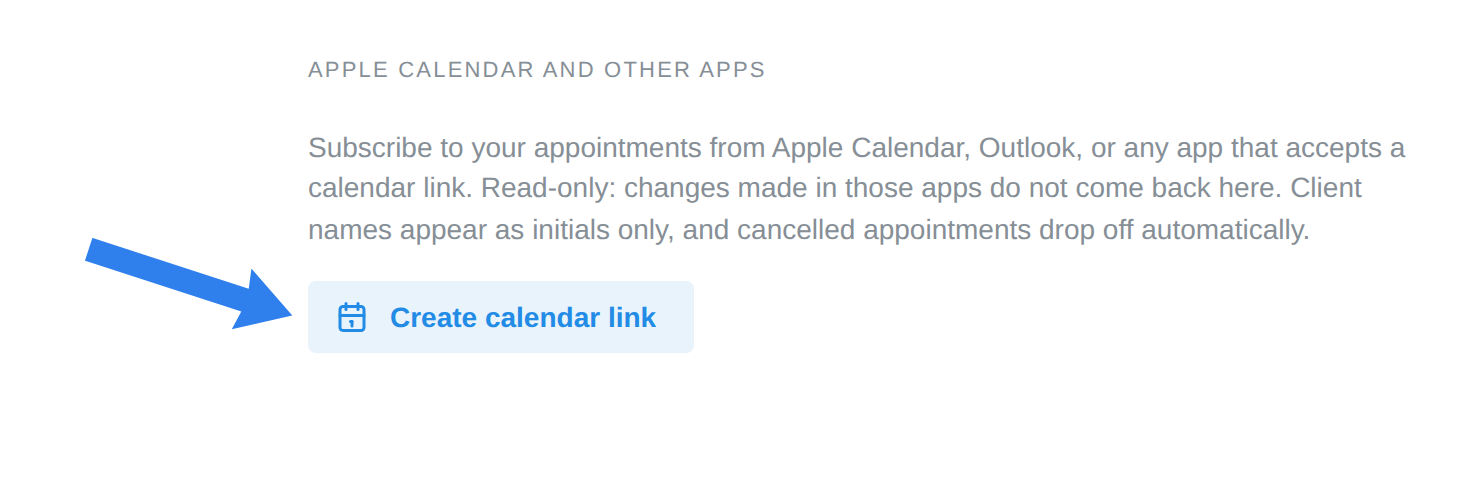
- Under Apple Calendar and other apps, click Create calendar link.
- Click Copy link.
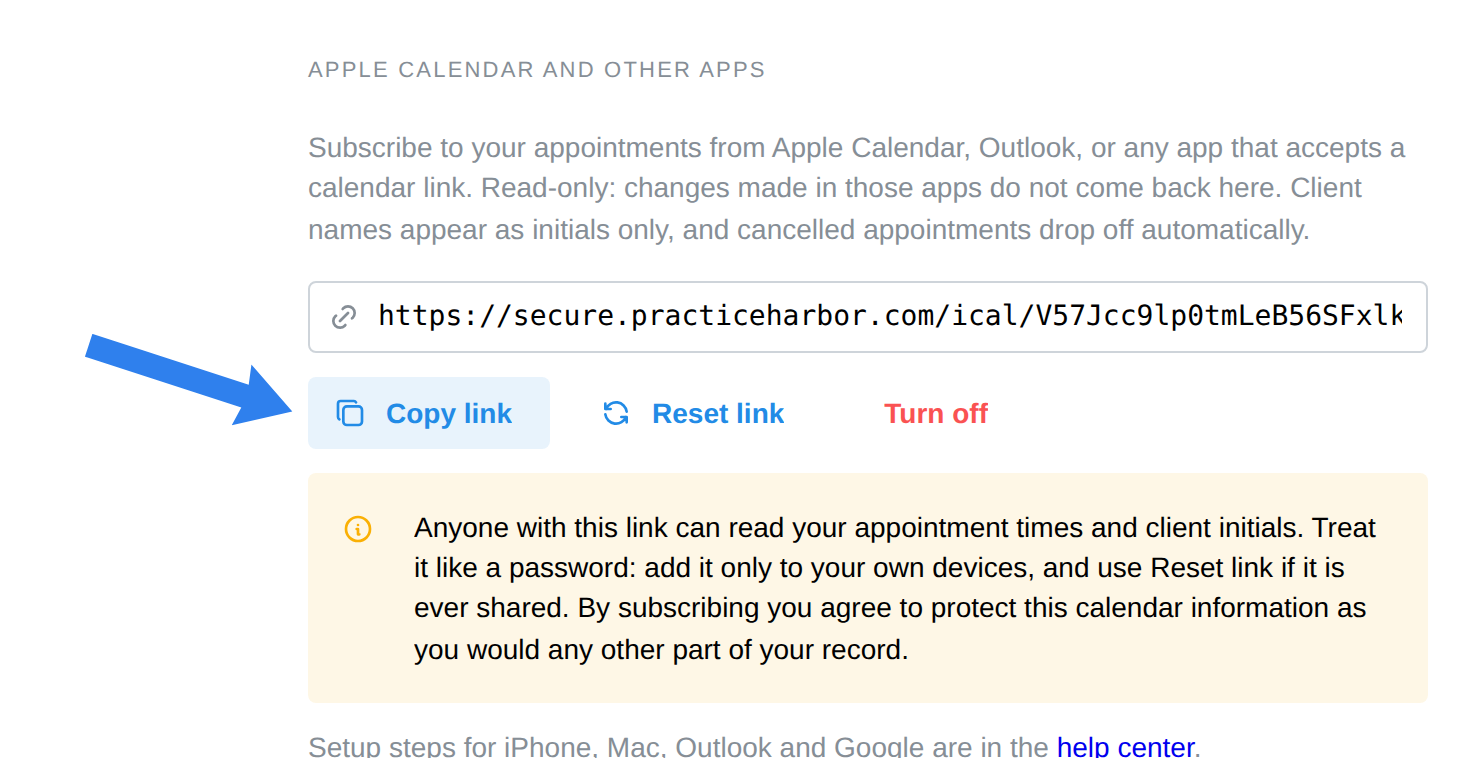
Anyone with the link can read your appointment times and client initials, so add it only to your own devices. If it is ever shared, click Reset link to make the old link stop working.
Add it on an iPhone or iPad
- Copy the link in Practice Harbor and send it to yourself, or open Settings on the phone and paste it there.
- Open Settings, tap Apps, then Calendar.
- Tap Calendar Accounts, then Add Account, then Other, then Add Subscribed Calendar.
- Paste the link into Server and tap Next.
- Leave Use SSL on. User name and password stay empty. Tap Save.
To refresh more often: in Settings, tap Apps, Calendar, Calendar Accounts, then Fetch New Data, and choose Every 15 Minutes.
Add it on a Mac
- Open the Calendar app.
- From the menu bar choose File, then New Calendar Subscription.
- Paste the link and click Subscribe.
- Set Location to iCloud if you want the calendar on your other Apple devices, and set Auto-refresh to Every 5 minutes. Click OK.
The calendar appears under Other with the name Practice Harbor. You can rename or recolor it there.
Add it in Outlook
- In Outlook on the web, open the calendar and choose Add calendar.
- Choose Subscribe from web, paste the link, give it a name, and click Import.
In the Outlook desktop app, use Add Calendar, then From Internet.
Add it in Google Calendar
Google can subscribe by URL too: under Other calendars, choose From URL and paste the link. Google only refreshes URL subscriptions once or twice a day, and there is no way to force it. For same-minute updates and two-way sync, connect Google Calendar sync instead.
Reset or turn off the link
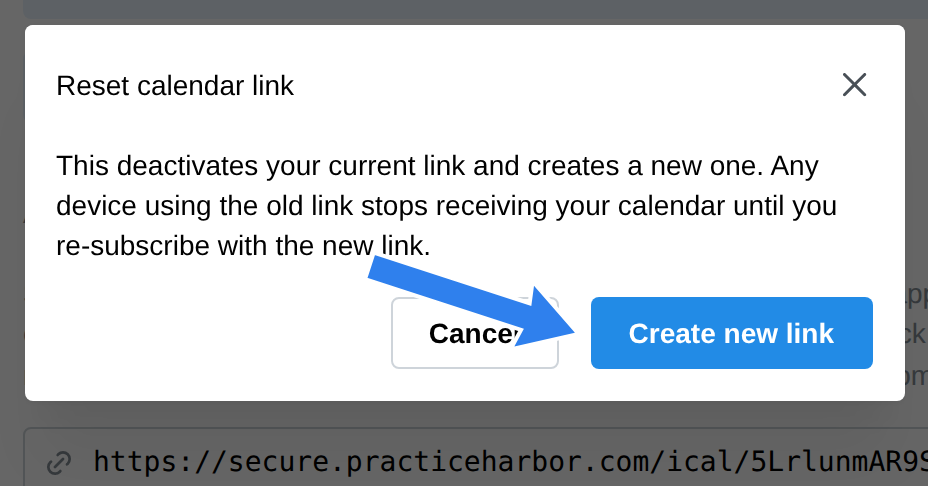
- Reset link creates a new link and deactivates the old one right away. Re-subscribe on each device with the new link.
- Turn off deactivates the link without creating a new one. Your subscribed calendars stop updating and you can remove them in the calendar app.
If the calendar is not updating
- The subscription refreshes on the calendar app's schedule, not ours. On a Mac, choose View, then Refresh Calendars. On an iPhone, pull down on the calendar list.
- Google Calendar can take up to a day to pick up changes.
- If it never updates, unsubscribe in the app and add the link again.