Google Calendar sync
Connect your personal Google Calendar and the two schedules protect each other: your Google events block online booking here, and your appointments here show up in Google — as initials only, never client names.
In this guide, we'll cover:
- Setting up sync
- What syncs, and when
- Privacy: what Google sees
- Your calendar display settings
- Disconnecting
- Troubleshooting
Setting up sync
Setup is two steps — connect the account, then pick which calendar to use:
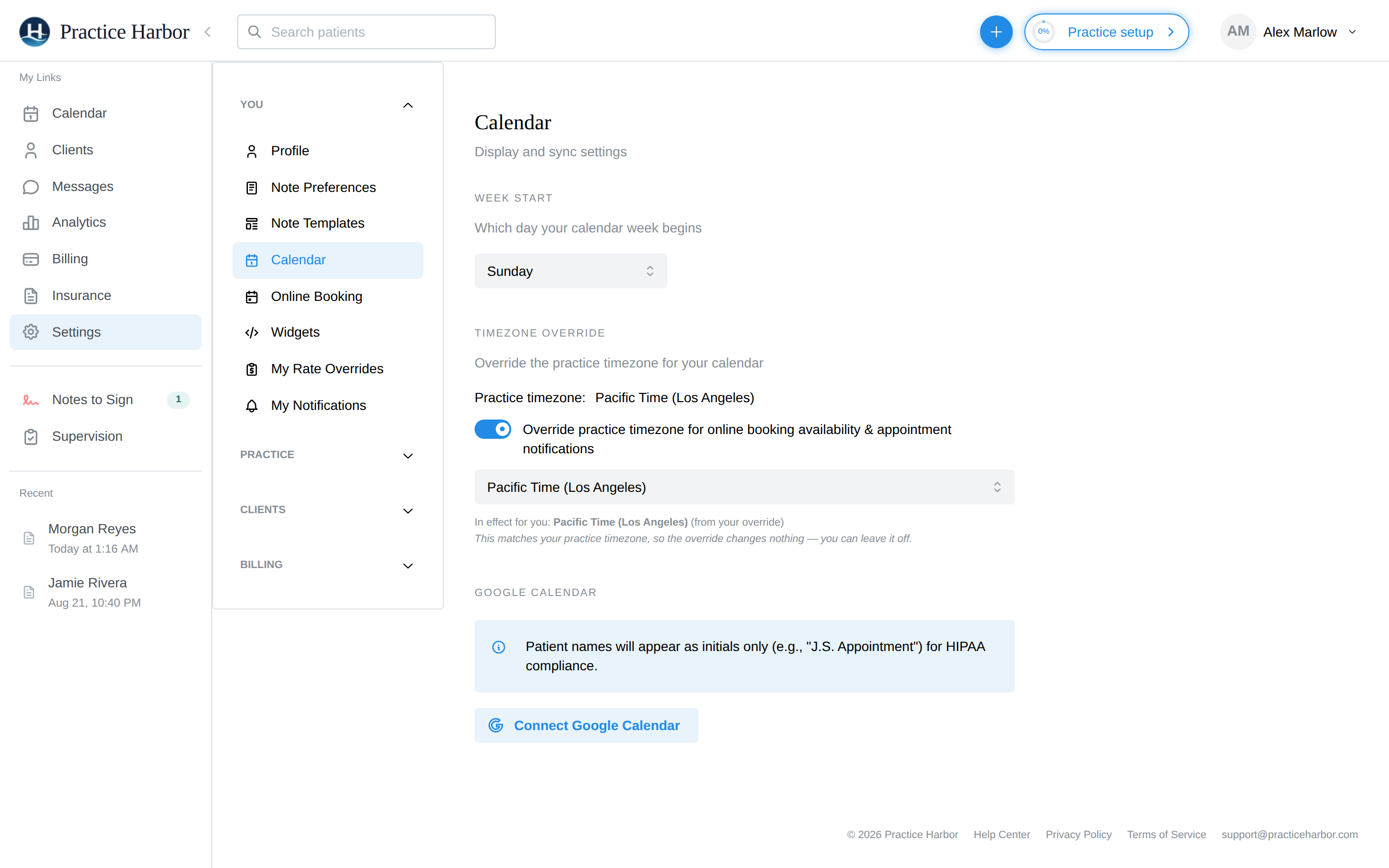
- Go to Settings → Calendar (under the You section) and find the Google Calendar section.
- Click Connect Google Calendar, sign in with Google, and grant calendar access. (The permissions requested are calendar events and your email address — nothing else.)
- Back in the app, Step 2: select a target calendar from your writable Google calendars and you'll see "Setup Complete!" with a count of existing appointments synced over. Until you pick one, an orange Step 2 Required badge reminds you — connecting alone doesn't sync anything.
The target calendar is locked once chosen — to point sync at a different calendar, disconnect and reconnect.
Choose the sync direction with the dropdown that appears once connected:
- 2-way sync (recommended) — your appointments sync to Google, and Google events block your availability.
- 1-way (Google → here only) — Google events still block your availability, but your appointments stay out of Google.
What syncs, and when
- Here → Google (2-way mode): appointments and blocked time appear in your Google calendar as they're created or changed, and disappear when cancelled. Everything from today forward is synced when you first connect.
- Google → here (both modes): your Google events appear on the app calendar as grey, read-only blocks the moment you open it — click one for its time details (it's badged Google). You can't drag or edit them here; change them in Google. Events you declined in Google don't block anything.
- Google busy time is subtracted from your online booking availability automatically — a dentist appointment on your personal calendar quietly removes those slots from what clients can request.
Privacy: what Google sees
Client names are never sent to Google. Synced appointments use initials only — e.g. "J.S. Appointment" — and the event description carries just the practice name. Blocked-time events sync with the title you gave them, so name those with sharing in mind.
Your calendar display settings
The same Settings → Calendar page holds two display preferences:
- Week Start — begin your calendar week on Monday or Sunday.
- Timezone Override — your practice's timezone is shown; flip the override switch if you personally work in a different one. The override applies to your online booking availability and appointment notifications.
Disconnecting
Click Disconnect in the Google Calendar section — it takes effect immediately (there's no confirmation prompt). Your appointments in the app are untouched; the copies the app created in your Google calendar are removed, and the toast reports how many. If cleanup is slow you may see "Disconnect in progress — cleanup may still be running on the server" — that's normal, the connection is already severed.
Troubleshooting
Google events stopped showing on my calendar. The most likely cause is an expired Google authorization — the app treats it as a disconnect, without much fanfare. Check Settings → Calendar: if you see the Connect Google Calendar button again, reconnect and pick your calendar; events reappear immediately.
I picked the wrong calendar. Disconnect and reconnect — the target calendar can't be changed in place.
Do my colleagues see my Google events? No. The connection is personal: only you see your Google events on your calendar, and they block only your online-booking availability. Each clinician connects their own Google account.
Related
Using Apple Calendar or Outlook instead?
If you do not use Google Calendar, create a read-only subscription link instead: see Apple Calendar and other apps.