Recording a session
There are two ways to get a session into an AI-generated note:
- Live Session — record the actual session audio (in person or telehealth) and the AI transcribes it and drafts the note
- Note Dictation — after the session, dictate a summary in your own words and the AI structures it into your template
Both are linked to each other from their pages, so you can always switch.
In this guide, we'll cover:
- Live session
- Recording consent
- Note dictation
- Tips for better notes
- What happens next
- Session prep
- If a recording is interrupted
Live session
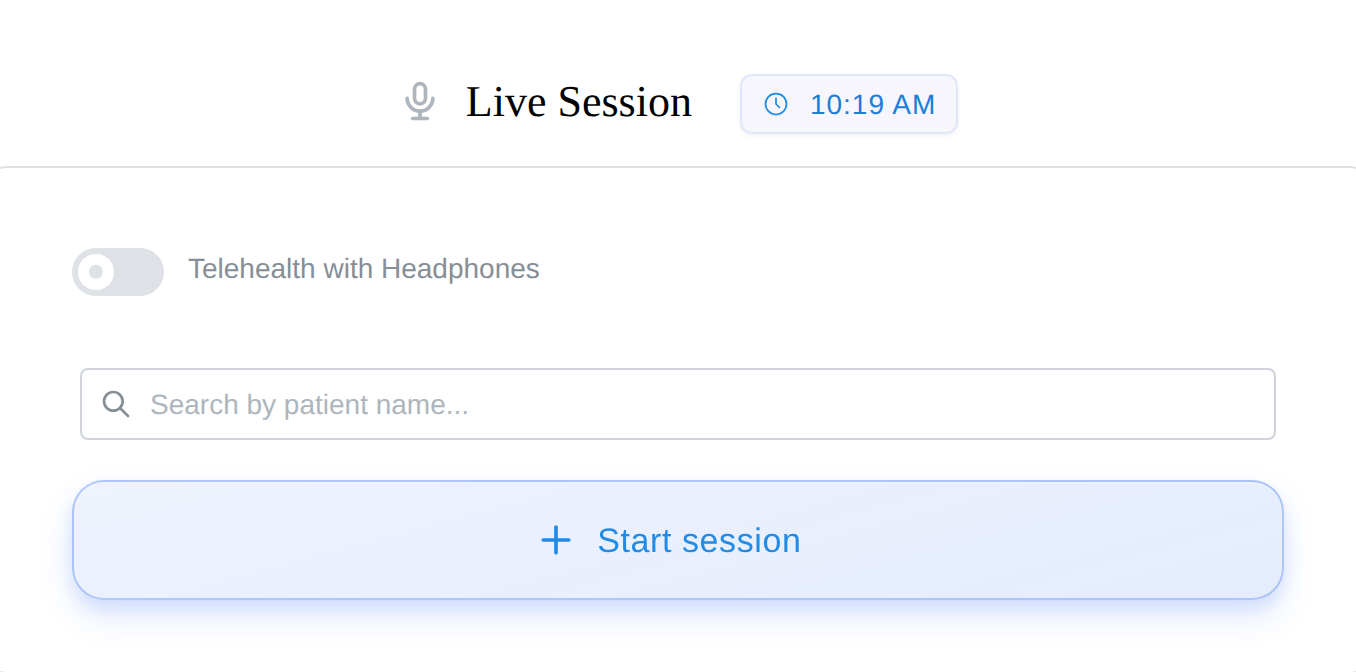
Open the Live Session page from an appointment's Record Session button, from a client's chart, or directly. Then:
- Select the client (pre-filled when you arrive from an appointment)
- If it's a telehealth session and you're wearing headphones, switch on Telehealth with Headphones before starting — with headphones, the client's audio never reaches your microphone, so the app captures it differently
- Pick the note template for this session (your default is preselected) — the Start button waits until one is chosen
- Click Start session, conduct your session as normal, and click End session when done
Sessions up to 150 minutes are supported. While the recording finalizes the button reads "Finalizing recording...", then "Transcription Queued" with a note that "You can safely navigate away" — processing continues in the background and the button flips to Note Generated when the draft is ready. If processing ever fails, the same button becomes "Processing failed — Tap to retry" and your audio is retained for the retry.
Recording consent
Obtaining consent to record, verbally or in writing, is your responsibility; the app asks, it never blocks. The first time you record a client, a confirmation appears: "We don't have consent on file for this client. Please confirm that you've obtained verbal or written consent to record this session before proceeding." Confirm with Yes, I have consent, and tick "Don't ask again for this client" so the question does not come back for that client.
The same check runs wherever you record: the Live Session page, Start Notes in a telehealth call, and the mobile app's recorder. If you want a signed record, send the Consent to Record Audio form via intake; it is kept on the client's chart like any other signed document.
Dictation skips the check — there's no client audio in a dictated summary.
Note dictation
Prefer to summarize instead of recording the session itself?
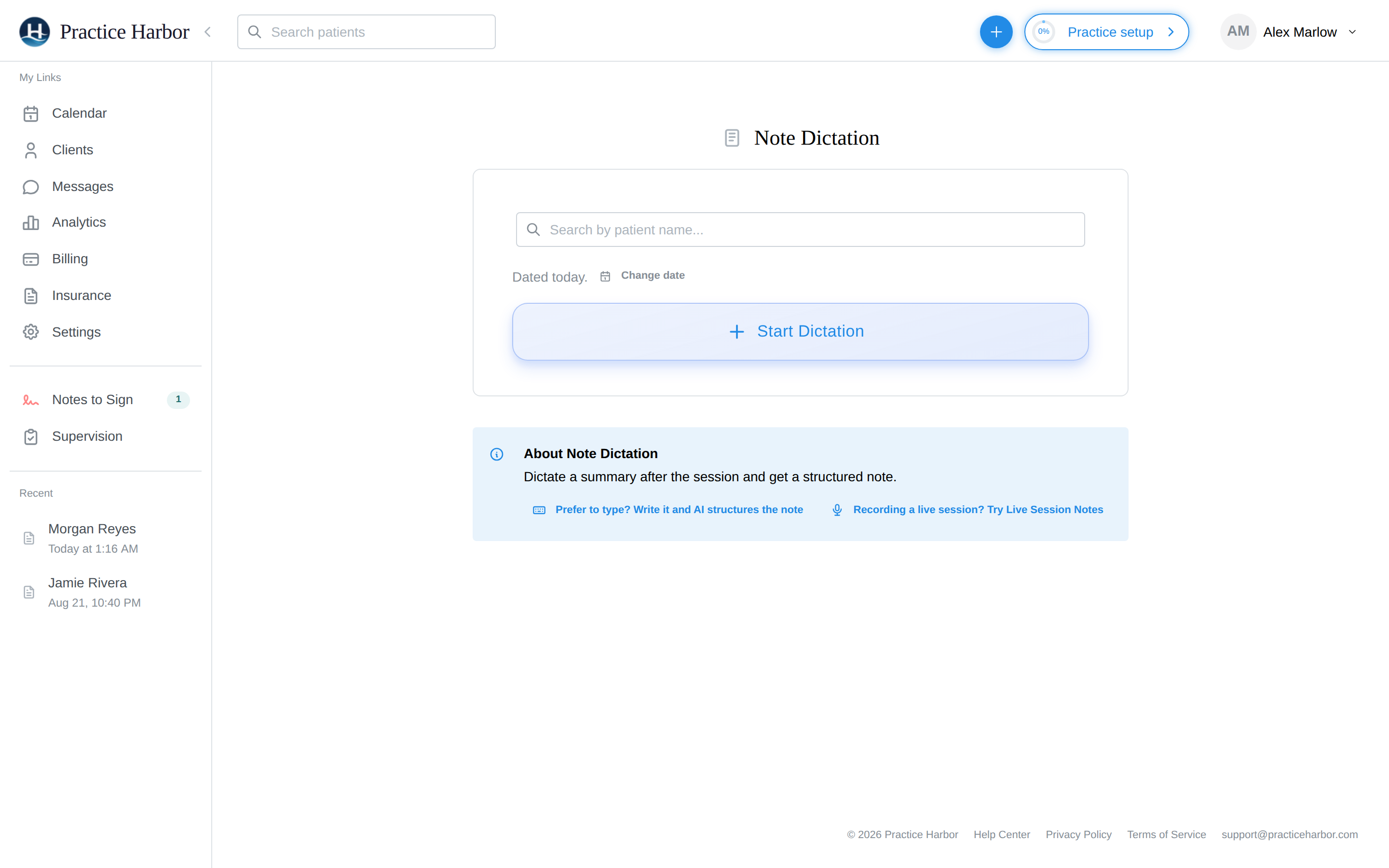
- Open Note Dictation (linked from the Live Session page)
- Select the client
- The note is dated today by default — click Change date if you're documenting a previous session
- Click Start Dictation and speak naturally — dictations run up to 5 minutes, which is plenty for a session summary
- Finish, and the AI structures your dictation into your note template
Tips for better notes
- Speak naturally — you don't need to follow a specific format; the AI structures it around your template's sections
- Include key details — interventions used, client responses, mood/affect observations, risk factors addressed, and the plan for next session
- Use your normal clinical language — clinical terminology is handled well
- For dictation, a minute or two of focused summary usually produces a solid draft
What happens next
The draft lands on the client's chart, the appointment, and your Notes to Sign list — open it from any of those, refine sections with Magic Edit, then Sign Note — or Submit for Review if you're under supervision. For couples and family sessions started from a group, the note attaches to the group's chart, and a "Who attended this session?" selector records attendance.
Session prep
On the recording page (and in video sessions), the Session Prep panel — opened with the Last Note button — gives you a pre-session briefing without leaving the page:
- Measures — the client's scored-measure activity, including anything still awaiting completion
- Last Note — your previous note for the client, section by section
- Ask about this client... — an AI question box for quick chart questions ("when did we last discuss sleep?") answered from the client's session notes. Includes a daily allowance per clinician (resets at midnight in your timezone); it needs at least one note on the chart to work from
Thirty seconds in Session Prep replaces the pre-session chart scramble.
If a recording is interrupted
Crashes, dead batteries, and closed laptop lids happen — mid-session audio is protected:
- The recording is saved locally (encrypted) as it runs. If the app closes unexpectedly, the interrupted session appears at the top of the left sidebar's Recent list, marked Unprocessed audio — click it to reveal the Recover into a note and Discard actions
- Recovered audio is submitted for transcription and the note generates normally — you'll see a "Session recovered" confirmation
- If a microphone disconnects mid-session (a Bluetooth headset dying), the session finalizes with the audio captured up to that point rather than losing it
If nothing was heard
The level meter shows live input while you talk. If nothing has been heard about 45 seconds into a recording, a small Not hearing anything yet banner appears beside the meter; it goes away on its own as soon as sound arrives. If you stop a recording that never picked up speech — the microphone was muted, or the wrong input device was selected — the app says We didn't hear anything before uploading. Choose Check mic and re-record to fix the device and start again, or Upload anyway if the room really was that quiet. Nothing is discarded without you choosing it.
If you forget to stop
When a recording runs past the appointment's scheduled end and nothing has been heard for eight minutes, a Still recording? prompt appears. It stops and processes the recording on its own two minutes later unless you choose Keep recording, which waits another eight quiet minutes before asking again. Recordings started without an appointment get the same prompt after twenty quiet minutes. The recording always processes normally; it is simply stopped where the session ended.