Supervision
Supervision links a pre-licensed (or otherwise supervised) clinician to a supervisor who reviews and co-signs their notes before they're finalized. The workflow covers designating supervisors, marking clinicians as supervised, and the review / co-sign / return-for-revision loop.
In this guide, we'll cover:
Setting up supervision
1. Give the supervisor the Supervisor role. Do this first — a clinician can't be marked as supervised until at least one team member holds the Supervisor role.
- For a new team member: check Supervisor on the role step of the invite.
- For an existing member: Settings → Team → ⋮ → Edit Role, check Supervisor, save.
The Supervisor role can be combined with a clinician role, or held alone by a supervisor who doesn't carry a caseload in the practice.
2. Mark the supervisee. When inviting them (or later via Edit Role), check Under supervision and pick their supervisor from the Select Supervisor dropdown.
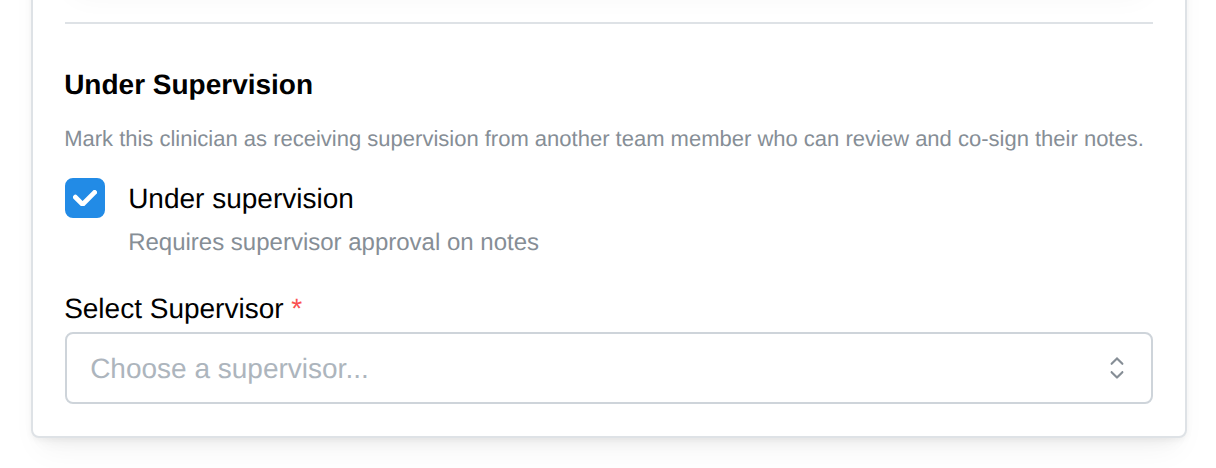
Or let the supervisee do it. A clinician can link their own supervisor without the owner: Settings → Profile, under Your Access, tick I'm pre-licensed under supervision and choose your supervisor from the Supervisor list. The list shows every team member who holds the Supervisor role, so that role has to be assigned first; until it is, the page says so. Untick the box if your supervision happens outside Practice Harbor. (A team member who holds the Supervisor role can't also be supervised.)
You can see every supervision relationship at a glance in the Supervision column of Settings → Team.
For supervisees
Supervised clinicians document exactly like everyone else — the only difference is at signing time:
- Write or generate your progress note as usual.
- Instead of Sign Note, your signature button reads Submit for Review. Click it to sign the note and send it to your supervisor's review queue.
- While it's pending you'll see Awaiting Supervisor Review on the note; if your supervisor returns it for changes, it appears in your Notes to revise list (and under the Returned filter on Notes to Sign) with their comment — make the edits and submit again. Your sidebar link reads Revisions Requested with a count whenever something's waiting on you.
- Once your supervisor co-signs, the note is finalized and shows both signatures — yours and "Co-signed by [supervisor's name and credential]."
For supervisors
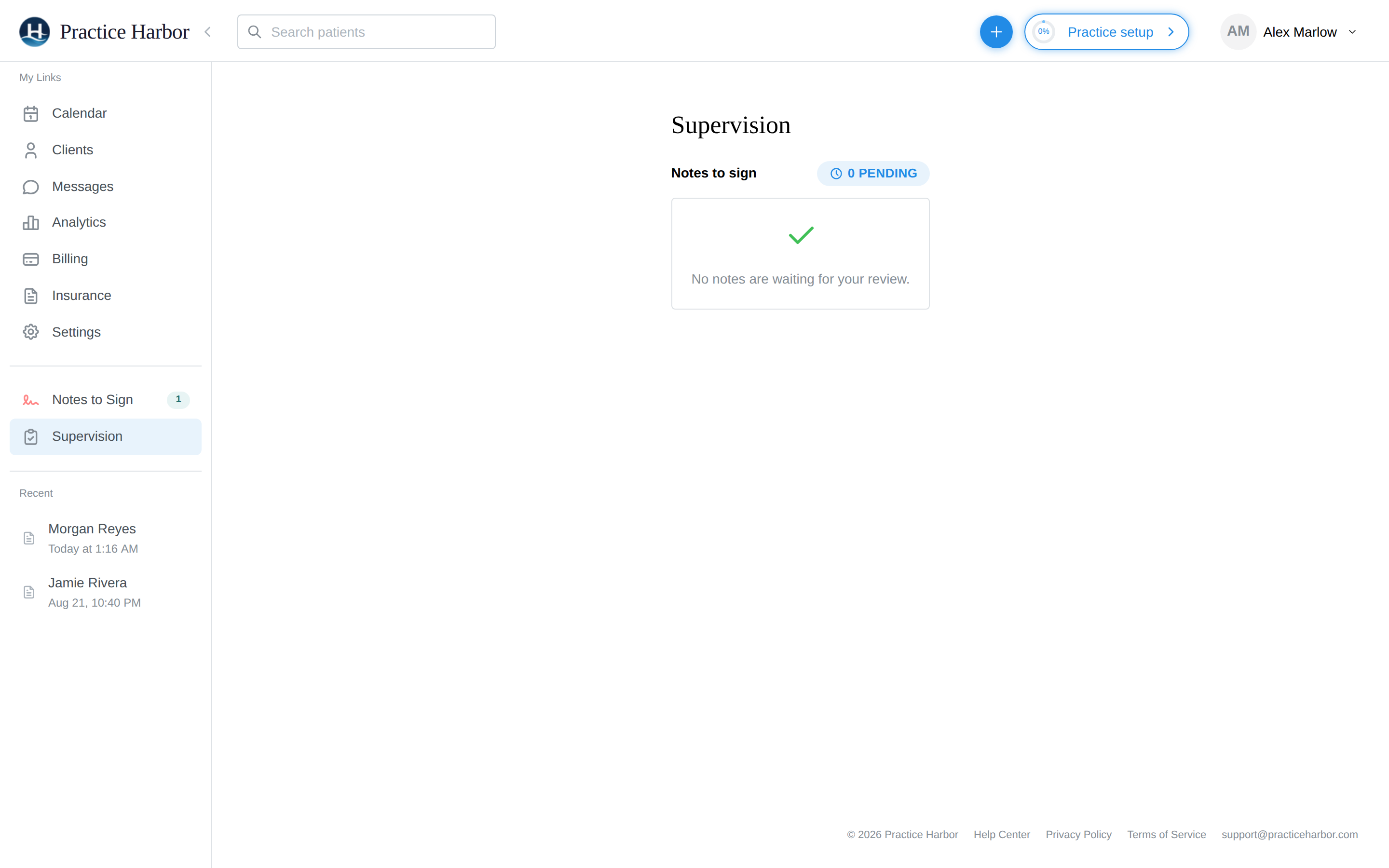
- Open the Supervision dashboard from the sidebar — the link reads Pending Review with a count when notes are waiting. Its Notes to sign queue lists each submission with the client, note type, who submitted it, and when. (Treatment plans submitted for review land in the same queue.)
 2. Click Review to open the note.
3. To approve, click Co-Sign Note — your signature is added and the note is finalized with
both signatures.
4. To request changes, click Request Edits, write your comment ("Describe the edits you'd
like"), and Request Now. The supervisee's signature is removed, the note returns to them,
and your comment travels with it.
2. Click Review to open the note.
3. To approve, click Co-Sign Note — your signature is added and the note is finalized with
both signatures.
4. To request changes, click Request Edits, write your comment ("Describe the edits you'd
like"), and Request Now. The supervisee's signature is removed, the note returns to them,
and your comment travels with it.
Discussing a note without returning it: the Comments button on any note under review opens a running thread between you and the supervisee — comments stay outside the clinical record and the client's chart. A Request Edits comment posts into the same thread, so the conversation and the decision live together.
Note that your co-sign queue lives here on the Supervision dashboard — the Notes to Sign page shows only your own notes.
Documenting supervision itself
Supervision in Practice Harbor is about the supervisee's client documentation: their notes and treatment plans, which you review, comment on, return, or co-sign. It does not include a record of the supervision meeting — the notes a supervisor keeps about what was discussed with a supervisee, or the forms a licensing board asks for.
There is no place for that record in the app today. Every note lives on a client's chart, and a supervision meeting has no client. So, two things not to do:
- Don't create a client record for your supervisee. A chart is a clinical record with its own rights of access and release; a supervisee isn't a client, and a "chart" for them would put your notes about their work alongside real client records.
- Don't attach a supervision form to a client's chart. If you've built or imported a supervision form as a note template, it can only be applied to a client's note — where it would sit in that client's clinical record. Leave it unused.
What to do instead:
- Keep your supervision meeting notes in the system your board or agency already expects (its own forms, or your practice's records outside the chart).
- Have the supervisee log the time under Clinical Hours → Supervision — that bucket is entered by hand and exports for the board. See Clinical hours tracking.
- Use the Comments thread on a note under review for feedback about that note; it stays outside the clinical record and the client's chart.
Good to know
- Supervision status doesn't change what the supervisee can access — that's controlled by their clinician access level. A typical setup for a pre-licensed associate is Clinician with basic access + under supervision.
- A supervisor can have any number of supervisees; each supervisee has one supervisor.
- Removing the Supervisor role from someone who still has supervisees requires explicit confirmation, so supervision links aren't broken by accident.