Recording your first session
This guide walks you through recording a therapy session and generating an AI progress note — the workflow at the heart of the product.
In this guide, we'll cover:
- Before you start
- Opening the Live Session page
- Recording the session
- Generating your note
- Prefer dictation?
- What happens to the recording?
Your first sign-in includes an interactive tutorial that demonstrates this exact flow with a built-in sample client, so you can try it before adding any real clients.
Before you start
- Add a client — go to Clients and add your first client (see Add a Client)
- Check your note template — Settings → Note Preferences sets your default template (choose from the template gallery — SOAP, DAP, therapy-specific formats, and more; see Note Templates)
- Microphone access — your browser will ask for microphone permission the first time you record; allow it
Opening the Live Session page
There are a few ways in:
- Click Record Session on an upcoming appointment (calendar or client chart)
- Start from a client's Notes tab
- Or go directly to the Live Session page
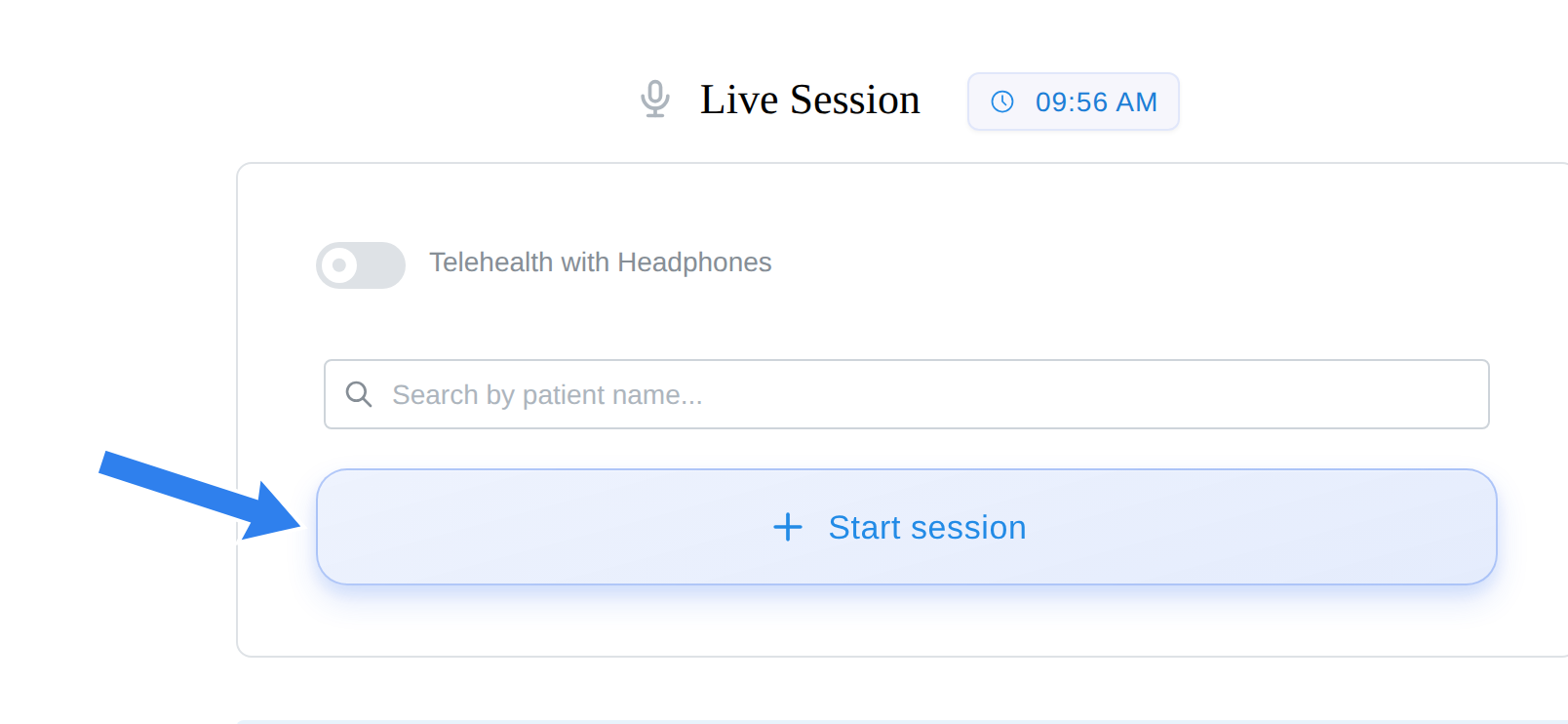
Recording the session
- Select the client — search by name in the patient field (pre-filled if you arrived from an appointment or chart)
- If you're conducting telehealth while wearing headphones, turn on the Telehealth with Headphones toggle first — with headphones, your client's audio never reaches the microphone, so the app needs to capture it differently
- Click Start session
- Conduct your session as normal — audio records in the background
- When you're done, click End session
Recording works for in-person sessions and telehealth alike, and sessions up to 150 minutes are supported.
Generating your note
After you end the session:
- The audio is transcribed, then a draft progress note is generated with your selected template — progress messages show each stage ("Transcribing your session audio…", "Generating clinical note from your session…")
- Review the draft — it contains the key clinical content from the session organized into your template's sections
- Refine any section with Magic Edit (for example, "make the assessment more detailed") — see Magic Edit
- Click Sign when you're satisfied — or Submit for Review if you're a supervisee, which routes the note to your supervisor to co-sign (see Supervision)
The AI drafts the note, but you're always in control. Review every note before signing — it's your clinical judgment that matters.
Prefer dictation?
If you'd rather summarize the session in your own words than record it, use Note Dictation (linked from the Live Session page): dictate your summary and the AI structures it into your template.
What happens to the recording?
- Audio is processed securely in a HIPAA-compliant environment
- The transcription is used to generate your note
- Identifying details are handled carefully throughout processing