Messaging your provider
The Messages page is a secure way to reach your provider between sessions — safer than regular email for anything health-related.
Messages are read when your provider is next available. If you or someone else is in immediate danger, call 911, or call or text 988 (Suicide & Crisis Lifeline).
Sending a message
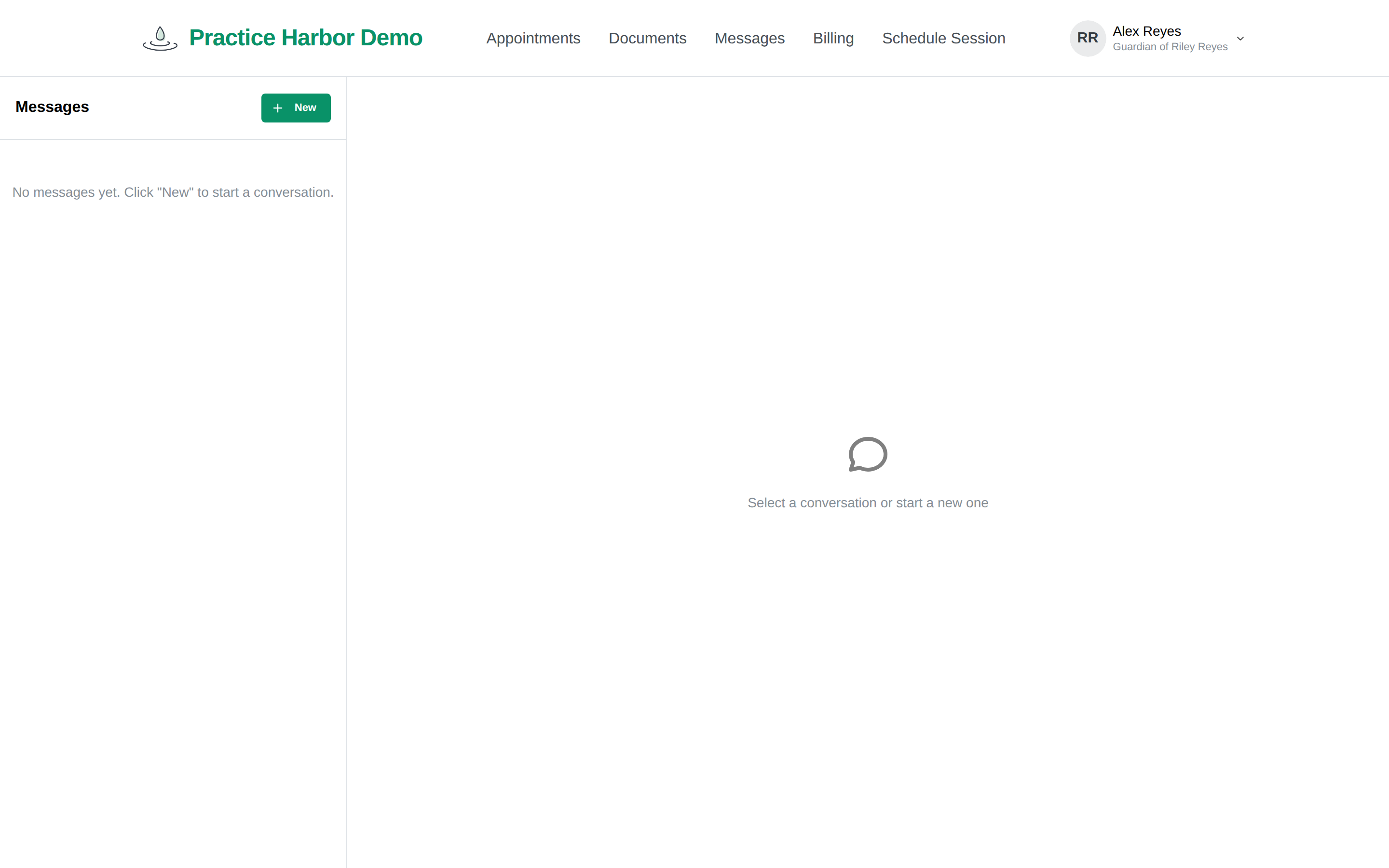
- Click Messages in the top menu.
- Click New, choose your provider under To, optionally add a subject, type your message, and click Send Message.
- To continue a conversation, open it in the list on the left, type in the box, and press Enter to send (Shift+Enter starts a new line).
To send a file — a photo or a document your practice asked for, for example — open the conversation and click the paperclip (Attach a file) next to the message box, choose the file, and send. You can attach photos (JPG, PNG, HEIC) and documents (PDF or Word), up to 25MB each. Files your provider sends you appear in the conversation — click one to open it.
A conversation with an unread reply shows a dot in the list; under your own message, Seen appears once it has been read.
Good to know
- Check the portal for replies. Sign back in to read responses to your messages.
- Files you send become part of your record. Documents you attach are saved to your chart at the practice, so your provider can find them later.
- Messaging goes to your care team only — you can message the providers involved in your care, not other practice clients.
- If you don't see Messages in your menu, your practice hasn't turned messaging on — contact them by phone or email instead.