Getting started with your client portal
Your therapy practice uses a secure online portal where you complete paperwork, see your appointments, join video sessions, message your provider, and pay bills. This guide gets you signed in for the first time.
This page is written for clients. If you're a practice looking for setup instructions, start at Client Portal instead.
In this guide, we'll cover:
Activate your account
You can't sign up for the portal on your own — access starts with an invitation email from your practice.
- Open the invitation email and click Sign in. The link signs you in directly — there is no password to choose.
- On your first visit, bookmark the portal address shown in your browser — that's your practice's own sign-in page, and it's where you'll return every time.
Each sign-in link works once and expires 7 days after it was sent. If a link has already been used, the page says so and offers Request a new sign-in link — enter your email and a fresh one arrives in a minute or two. Check your spam folder if it doesn't.
Sign in
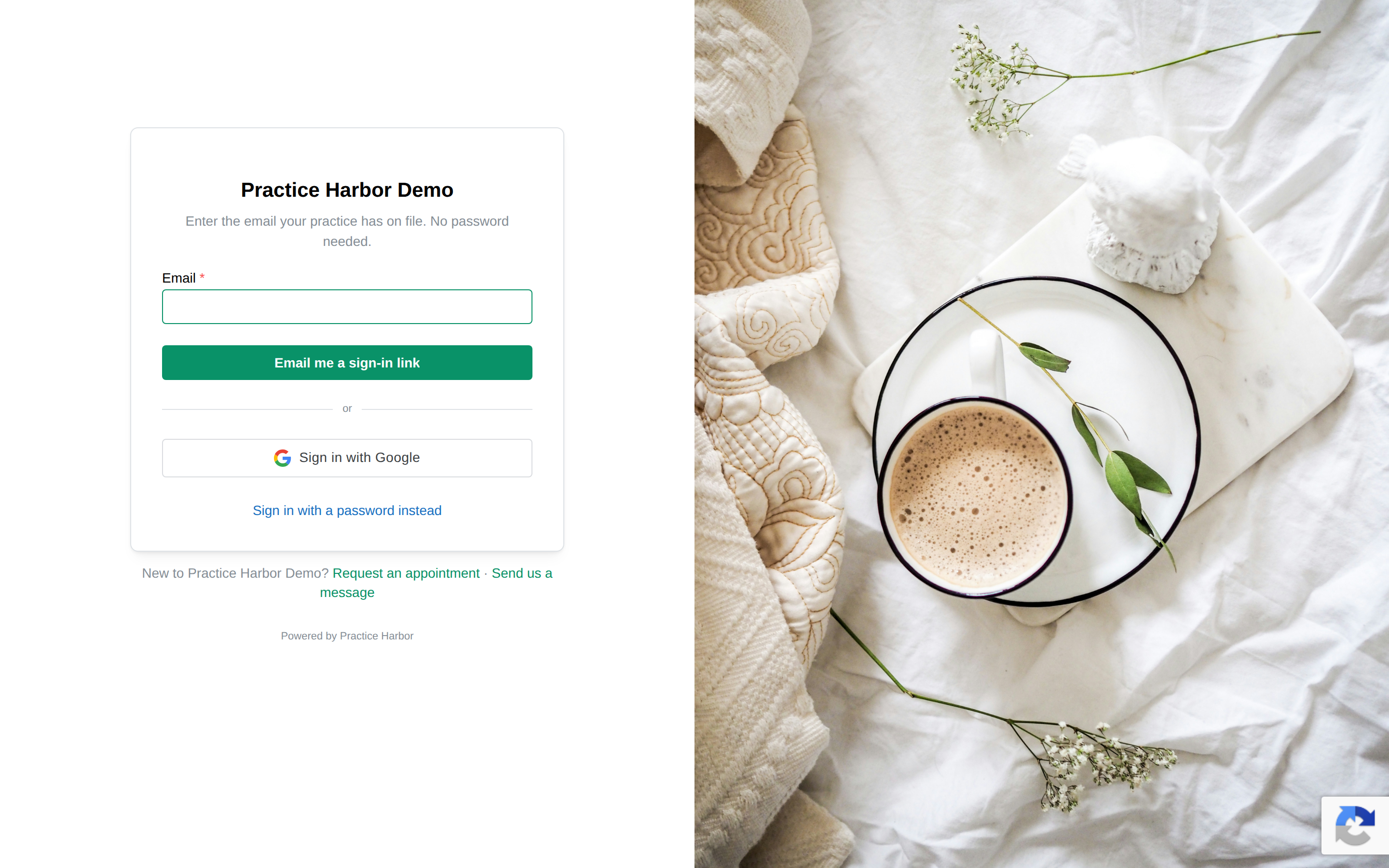
- Go to your practice's portal address (from your bookmark or any email from your practice).
- Enter the email address your practice has on file and click Email me a sign-in link.
- Open the email and click Sign in. That's it — you're in. A requested link works once and expires in 24 hours.
If the page shows Sign in with Google, you can use that instead — as long as it's the same email address your practice has for you.
Emails from your practice — a new secure message, paperwork to complete, a bill — carry their own sign-in link, so clicking the button in the email opens the right page already signed in.
Prefer a password? Click Sign in with a password instead under the sign-in button. If you haven't set one yet, click Reset Password there to choose one; after that you can sign in either way. (Forgot your password? lives in the same place.)
If you see care at more than one practice that uses this portal, open the menu under your name after signing in — Your logins lists each practice, and one click takes you to the other. And if you manage portal access for more than one child, you'll be asked which profile to manage — see Managing Care for Your Child.
Finding your way around
After signing in you land on Documents — where any forms your practice wants you to complete are waiting (see Completing Your Intake Forms).
The menu across the top:
- Appointments — your upcoming and requested sessions, and where you join video sessions
- Documents — forms to complete, and documents your practice has shared with you
- Messages — secure messaging with your provider
- Billing — invoices, payments, and cards on file
- Schedule Session — request a new appointment
Your practice controls which of these you see, so don't worry if your menu is shorter — for example, some practices handle scheduling by phone and don't show Schedule Session.
Your profile
Click your name (top right) and choose Your profile to update your name, date of birth, gender, and address. Your email can't be changed here — contact your practice if it needs updating. Click Save Changes when you're done.
The same menu has a Help link to this help center, and Sign out when you're done.