Completing your intake forms
Before your first appointment, your practice will ask you to complete some paperwork in the portal — typically intake questions, consent forms, and sometimes a brief assessment. It usually takes 5–20 minutes total.
In this guide, we'll cover:
Your checklist
Everything is on the Documents page — it's also the first page you see after signing in.
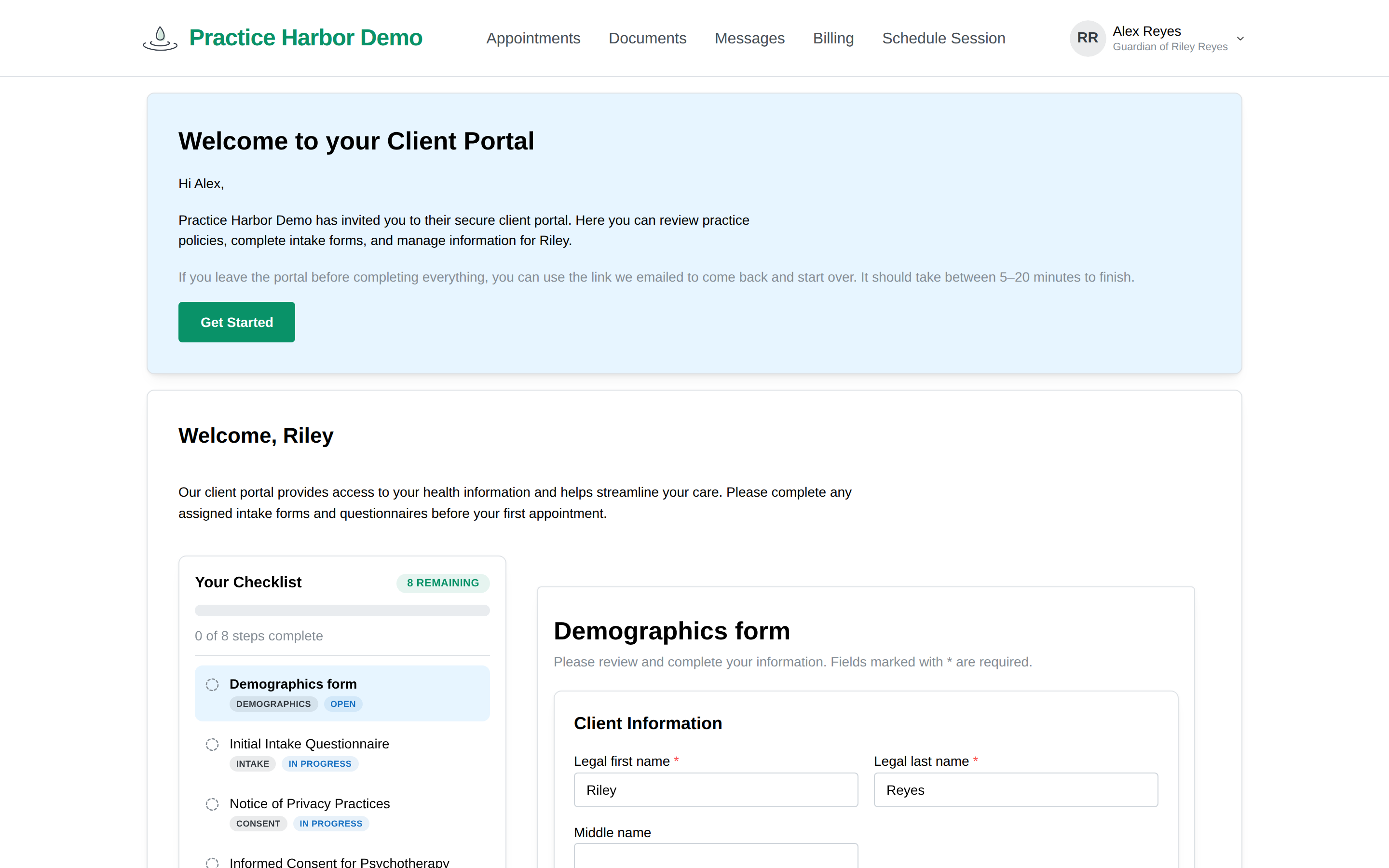
Your Checklist lists every step in one place — your forms, and, if your practice asks for them, a Demographics form and an Add Payment Method step. A single progress bar shows how far along you are (like "2 of 9 steps complete").
- On a computer, the checklist sits on the left and stays in view; whatever you're working on opens beside it.
- On a phone, the checklist is at the top and each item opens below it.
You can complete the items in any order — nothing is locked. Click any item to open it; when you finish one, it moves to Completed and the next unfinished item opens automatically.
Completing a form
- Click the form in your checklist (the next unfinished one is usually already open).
- Answer the questions on screen.
- Click the submit button at the end. The form moves to Completed and the next one opens.
Your answers are saved when you submit the form, not as you type. If you close the page partway through a form, those answers won't be kept — so start a form when you have time to finish it.
Consent forms work slightly differently: read the document, tick "I have read and agree to the terms above," and click Submit Agreement. Your agreement is recorded with your name and the date, exactly as the document read when you signed it.
The Demographics form comes pre-filled with whatever your practice already has on file — just correct or complete it and submit. Your practice's records update automatically.
Adding a card — if your practice requests a payment method, it appears as a checklist item like any other. Click it, enter your card details, and click Add Card; your card is stored securely by our payment processor. It doesn't have to be done first or last — complete it whenever suits you, or add a card later under Billing (see Paying for Your Care).
When everything is done, the page shows All assigned forms are completed — you're set for your first appointment. Your completed items stay in the checklist; click any of them to view what you submitted.
Documents your practice shares with you
Your practice may also send you things to read or keep — practice policies, letters, or other documents. They appear in the same checklist; click one to view it.
Good to know
- In couples or family care, your forms are private to you. Your partner signs in with their own account and has their own set of forms.
- Completing forms for your child? Sign in with your own account — see Managing Care for Your Child.
- A form won't open? Contact your practice — they can re-send it.