Set Your Password
After signing up, you'll receive a welcome email with a link to set your password and activate your account.
Steps
- Check your inbox for the welcome message (sent to the email you used at signup)
- Click the set password link in the email
- Choose a strong password. The page shows a live strength meter with the requirements:
- At least 8 characters
- Includes an uppercase letter
- Includes a lowercase letter
- Includes a number
- Includes a special symbol
- Confirm and submit — your account is now active
- Sign in with your email and new password
Don't see the email?
- Check your spam or junk folder
- Make sure you entered the correct email address during signup
- If you still can't find it, go to the sign-in page and click Forgot password? to send yourself a fresh link
Signing In
Sign-in is a two-step form:
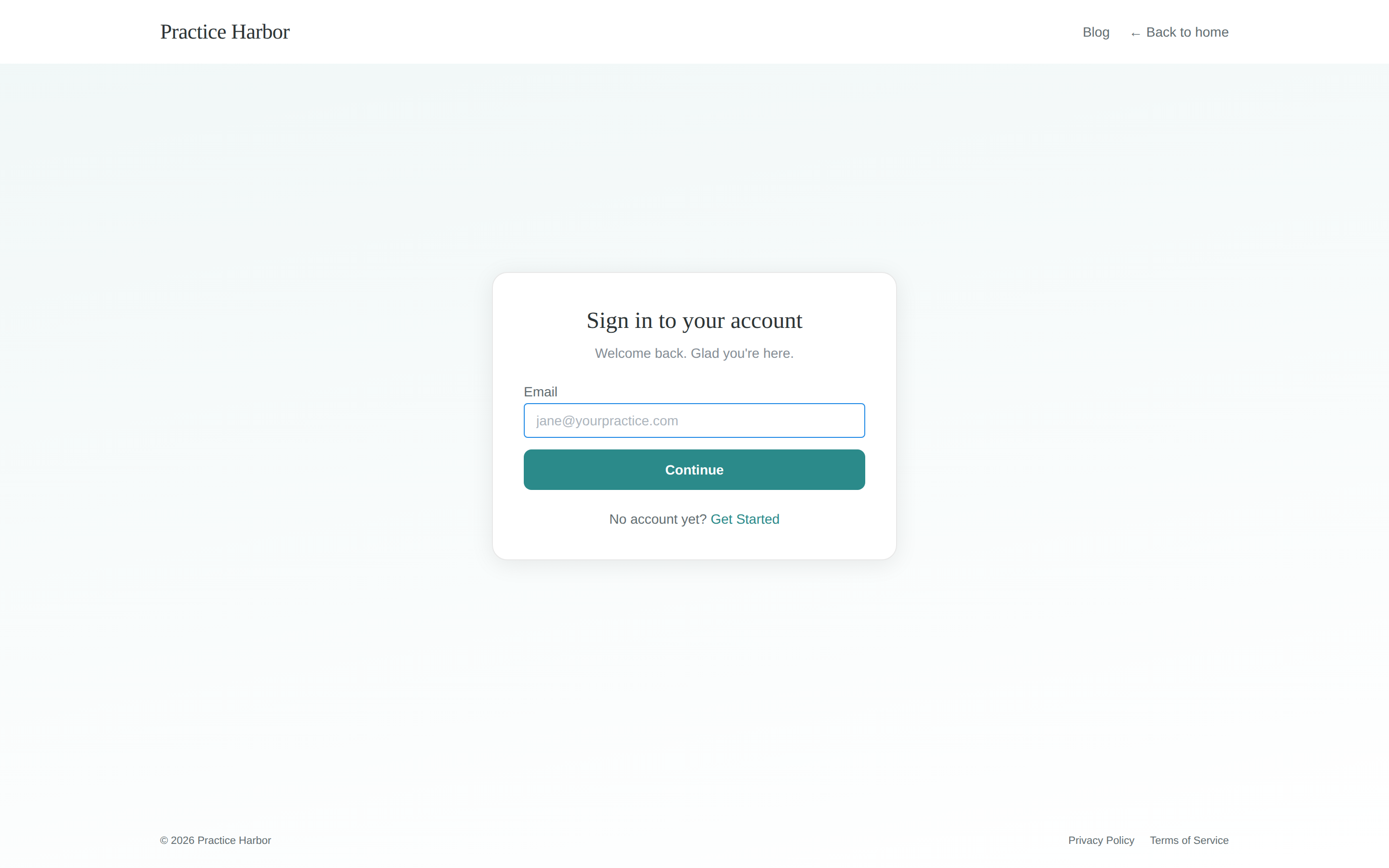
- Go to the Sign in page (top-right of the website)
- Enter your email and click Continue
- Enter your password and press Enter (or click the sign-in button)
On your first sign-in you'll land in the interactive tutorial — see Create Your Account.
Forgot Your Password?
- Go to the sign-in page and enter your email
- Click Forgot password?
- Check your email for a password reset link — it takes you to the same set-password page as the welcome email