Refunds, disputes, and card declines
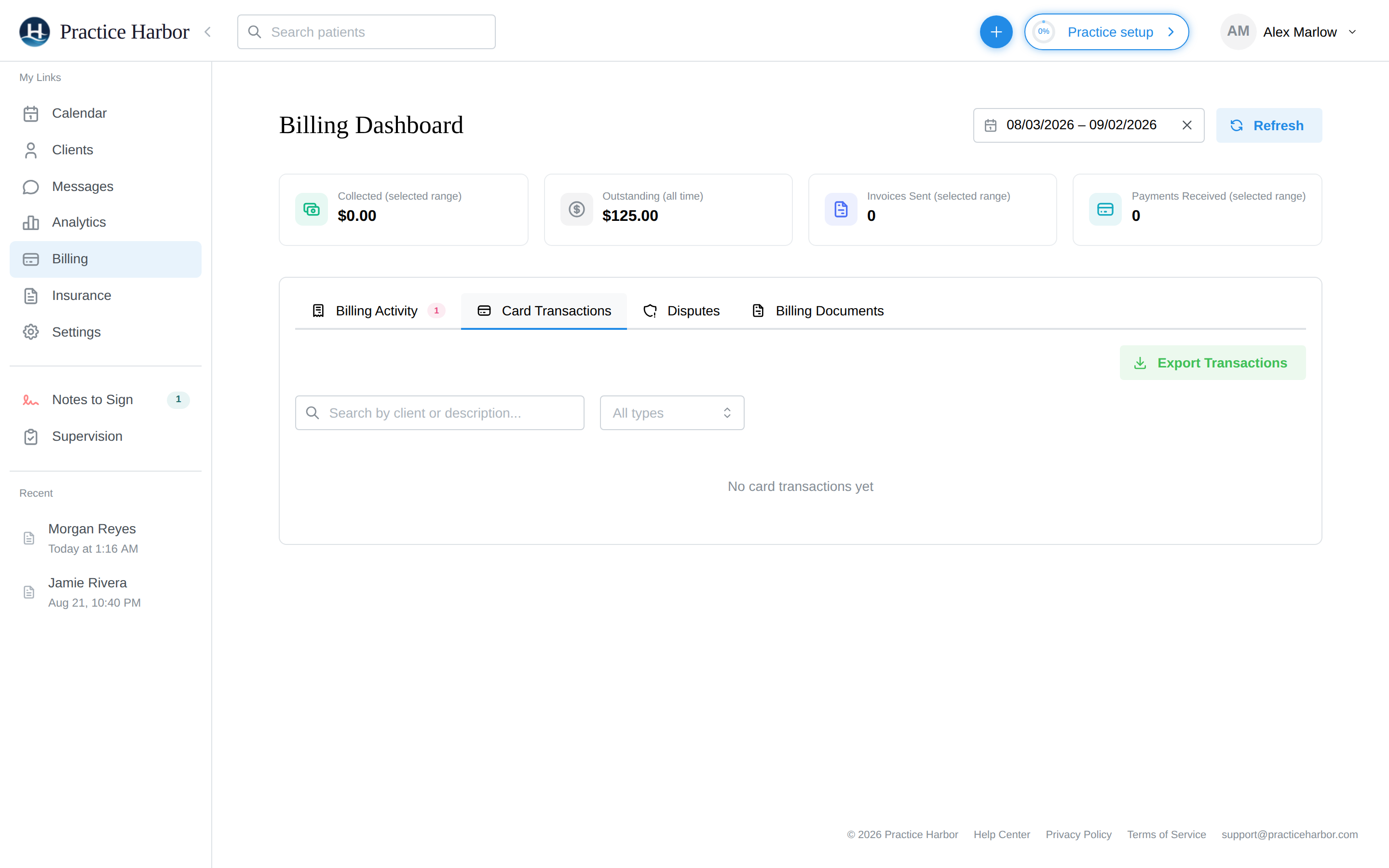
Card payments don't always go smoothly. This page covers the three ways they go sideways — you need to give money back, the client's bank takes it back, or the card refuses to pay in the first place — and exactly what to do in each case. Everything here lives on the Billing dashboard's Card Transactions and Disputes tabs.
In this guide, we'll cover:
- Refunding a card payment
- Understanding disputes (chargebacks)
- Challenging or accepting a dispute
- Handling card declines
- FAQ
The Card Transactions and Disputes tabs — and every action on them — are available to owners, practice managers, practice billers, and clinicians with billing access. Dispute handling is the billing function's job, and every action is logged.
Refunding a card payment
- Go to Billing → Card Transactions. Each row shows the date, type, client, amount, the processing fee, and the net that reached your account. Use the search box and the type filter (Payments / Payouts / Refunds) to find the charge.
- Click Refund on the payment's row.
- In the Process Refund dialog, the amount is prefilled with the full payment — leave it for a complete refund, or enter a smaller amount for a partial one.
- Confirm. The refund goes back to the card that paid, and a refund row appears in the same table once it's processed.
The client's billing records update to reflect the refund, so their ledger and your reports stay consistent — there's nothing to fix up by hand.
Understanding disputes (chargebacks)
A dispute (chargeback) happens when a client questions a charge with their bank, and the bank reverses the payment while it investigates. You'll see it on Billing → Disputes: the charge, the client, the reason the bank gave (Fraudulent, Duplicate Charge, Service Not Received, Unrecognized, and so on), the dispute's status, and — most importantly — the evidence due by date.
While a dispute is open:
- AutoPay pauses automatically for that client, so nothing else charges while you sort it out. If you win, AutoPay resumes on its own and the invoice stays paid. If the dispute is lost, the invoice reopens as unpaid — excluded from AutoPay — so you can decide with the client how (or whether) to settle it.
- Statuses move from Needs Response (act now — there's a deadline) through Under Review to Won or Lost.
Challenging or accepting a dispute
Decide before the evidence due by date; a dispute with no response is decided in the client's favor.
To challenge it:
- Go to Billing → Disputes and click Submit Evidence on the dispute's row.
- Add your evidence: a written account of the events, a description of the service provided, and any supporting file (a signed consent, an appointment record, correspondence).
- Submit. The row shows Evidence submitted and the status moves to Under Review while the card networks decide — this commonly takes weeks, and the bank's decision is final.
To accept it: click Accept on the row and confirm. Accepting means the client keeps the money and the matter closes — the right call when the charge really was made in error and you'd have refunded it anyway.
The strongest evidence is specific: who received the service, when, what they agreed to pay, and their signature agreeing to it. Generic statements rarely win disputes.
Handling card declines
A decline is the card refusing at charge time — nothing was taken, nothing to reverse:
- During checkout / collecting in person: try the payment again, or take another card.
- On AutoPay: the overnight run retries transient errors, and after three hard declines (card declined, expired, invalid) AutoPay disables for that client and notifies you so their bills don't silently pile up. Fix the card on file, re-enable, and the cycle resumes — the full flow is in AutoPay: when a card fails.
The polite fix for most declines is simply asking the client for a current card — expiry and replacement cards are the usual culprits. Clients can update their own card in the client portal.
FAQ
Does the client get the processing fee back on a refund? The client is refunded the amount you choose, up to the full charge. The fee column on Card Transactions always shows what the processor kept on the original payment.
Can I refund to a different card or in cash? Card refunds go back to the card that paid. If you settle another way (cash, check), record it against the invoice like any other adjustment instead of a card refund.
Where do payouts fit in? The same Card Transactions table shows Payouts — the transfers from your payment processor to your bank. For the report version (each payout with the transactions inside it), see the Payouts report.
What about tax forms (1099-K)? Tax reporting for card payments is handled through the payment processor. For the numbers, export the Payouts report and Card Transactions for the year; for questions about your form, contact support@practiceharbor.com.
A dispute arrived for a charge I already refunded — what now? Respond to the dispute with the refund as evidence. Banks sometimes open disputes that cross paths with a refund in flight; the evidence resolves it.