Collecting payments
In this guide, we'll cover:
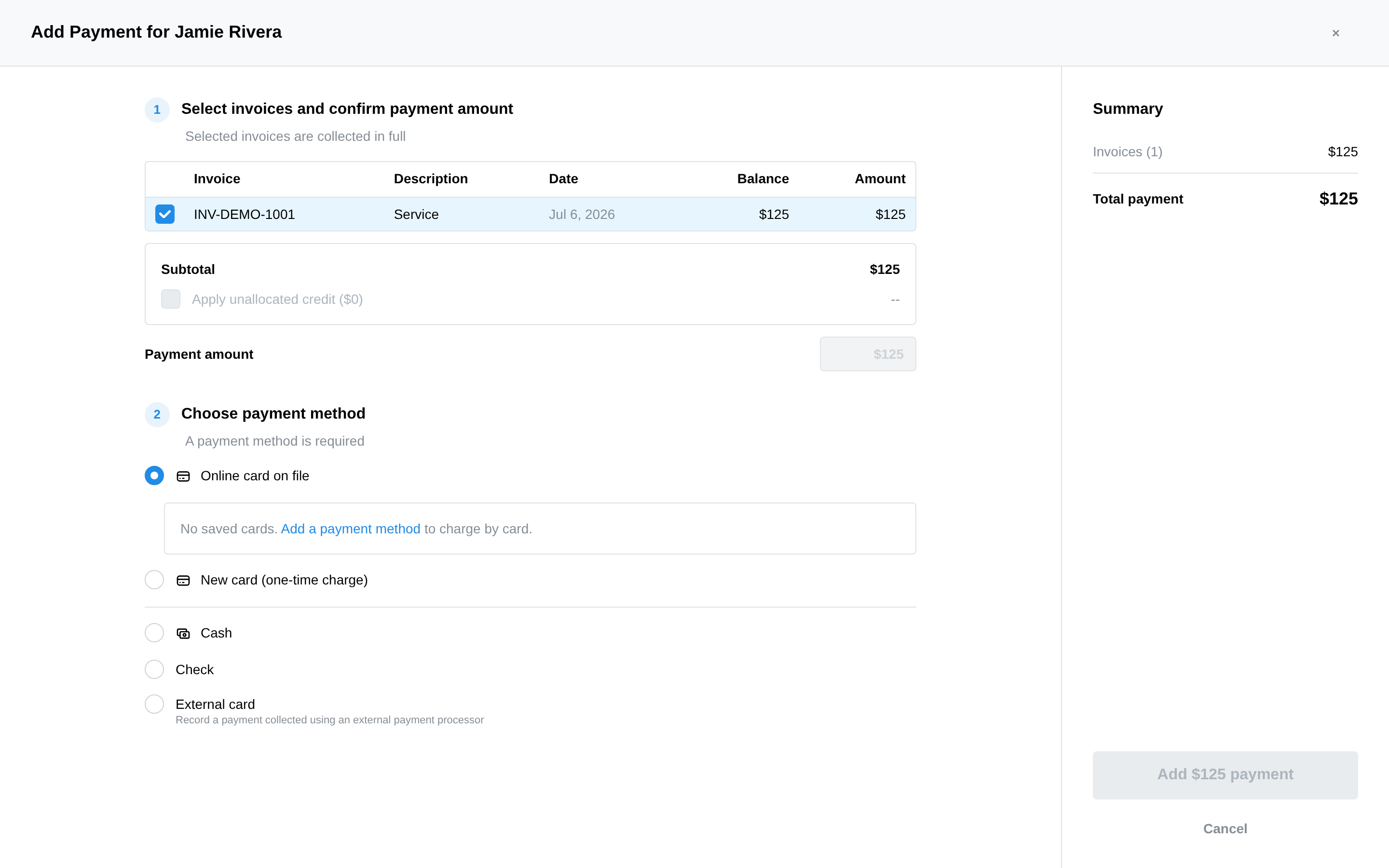
Add Payment — on an invoice row, the client's Billing tab, or straight from the appointment panel — opens one modal for every way money arrives. Pick the invoices to collect, then the method. Selected invoices are always collected in full; there's no partial-payment entry.
Payment methods
- Online card on file — charge the client's saved Stripe card (shown as brand •••• last-4; the default card is marked). If none is saved yet, the modal links you to their Payment & Insurance tab to add one.
- New card (one-time charge) — "One-time charge on a card that isn't saved. Use this for HSA/FSA cards, which generally can't be stored on file." Enter the card details; nothing is retained.
- Cash — record it with the payment date (income reports count it in that period).
- Check — same, plus the check number for your records.
- External card — "Record a payment collected using an external payment processor" (Square, Venmo, an old terminal…), with a transaction reference. The money isn't moved — you're recording that it happened elsewhere.
If the client has unallocated credit, an "Apply unallocated credit" checkbox uses it first — enough credit can settle an invoice with no charge at all (see Unallocated payments & credits).
Refunds
- Card charges — from the Card Transactions tab, click Refund on the transaction ("Refunds can be issued within 180 calendar days of the original charge.").
- From the payment's row menu — Refund Payment reverses the payment: card payments are refunded to the client's card through Stripe; cash, check, and external records are marked refunded (process the actual repayment outside the system). Delete Payment removes a record entered in error.
Collecting a card during intake
Check Request credit card on file when sending intake and the client is prompted to add a card in the portal — it lands on file for AutoPay and future charges. For minors the card saves to the guardian. See Collecting demographics & payment info.